Sources
Connect PlanetScale (MySQL) as a source
Create a read-only PlanetScale password and connect it to Artie, so your pipeline streams changes through the Vitess VStream API with no binlog setup.
Prerequisites
- A PlanetScale database on Vitess (MySQL). For PlanetScale for Postgres, use PlanetScale for Postgres.
- Access to the database in the PlanetScale console with a role that can create read-only passwords. On a production branch, that’s Organization Administrator, Organization Analyst or Database Administrator.
- The name of the keyspace you replicate from
Setup
Create a read-only password in PlanetScale, then connect it in the pipeline setup.
1. Create a read-only password
The Prepare PlanetScale (MySQL) step of the pipeline setup shows the same instructions.
Open the password settings
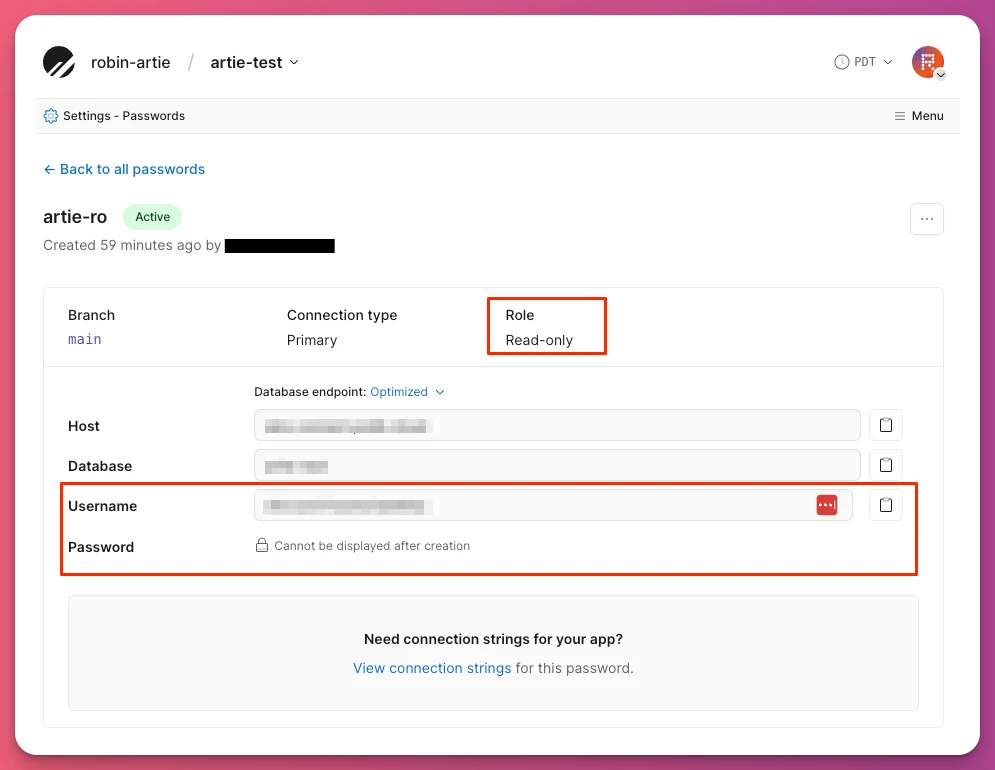
In the PlanetScale console, open your database and select Settings → Passwords → New password.
Set the role
Set Role to Read-only. It’s the least-privilege role: it can query rows, and it covers both backfills and ongoing change data capture (CDC). Artie doesn’t need Read/Write or Admin.
Copy the credentials
Save the password. Copy the Host, Username and Password that PlanetScale shows.
2. Connect PlanetScale in Artie
These steps cover the source part of the pipeline setup. For the whole flow, see the quickstart.
Choose the source
On Choose your source, select PlanetScale (MySQL), then select Continue.
Prepare the database
On Prepare PlanetScale (MySQL), create the password in 1. Create a read-only password, then select Continue.
Enter the connection settings
On Connect PlanetScale (MySQL), fill in the connection settings.
Verify the source
Select Verify source. The step shows Source verified.
Continue
Select Continue.
The setup has no Network access step for PlanetScale, because Artie doesn’t support SSH tunnels to PlanetScale. To check the source later, select Verify later.
When you pick a saved PlanetScale connector, the setup skips the preparation step. Connect PlanetScale (MySQL) shows the connector’s details in place of its credential fields. Edit the credentials in Settings → Connectors.
Connection settings
Every field except TLS mode is required.
| Field | Default | Value |
|---|---|---|
| Host | None | The Host from the PlanetScale password page, for example aws.connect.psdb.cloud. |
| Port | 3306 | The port for MySQL connections, from 1 to 65535. |
| User | None | The Username from the PlanetScale password page. |
| Password | None | The Password from the PlanetScale password page. |
| TLS mode | TLS (required) | Locked. TLS is required for PlanetScale and can’t be changed. |
| Keyspace name | None | The keyspace Artie lists tables from. |
The step also has an optional checkbox, Backfill MySQL FLOAT columns as their shortest decimal, which is off by default. With it on, backfills write each FLOAT value with the fewest digits that still represent the stored value, the same way replication writes it.
Advanced options
Advanced options on Connect PlanetScale (MySQL) holds two optional settings.
| Setting | Default | What it does |
|---|---|---|
| Label | None | Tells this connector apart when you reuse it. |
| Message compression | None (default) | GZIP compresses the messages Artie writes to Kafka. See Message compression. |
Choose keyspaces and tables
Artie identifies each PlanetScale table by its keyspace and table name. On Which tables do you want to stream?, the setup lists the tables in the keyspace from Keyspace name.
To add tables from another keyspace, select Edit pipeline and open the Tables tab. Pick a keyspace in Keyspace name to list its tables. The tab lists one keyspace at a time.
Destination table names
Without keyspace unification, the same table in two keyspaces lands in two destination tables. When every table lands in one destination schema, Artie prefixes each table name with its keyspace. For example, commerce.orders lands as commerce_orders. See Destination table naming.
Sharded keyspaces
Artie replicates tables in sharded keyspaces. It reads changes from every shard in the keyspace, so you don’t list shards.
Tables without a primary key
The setup doesn’t ask for a merge key on a PlanetScale table without a declared primary key. Its backfill keys on the columns MySQL marks as PRI instead. An Override primary keys setting on the table takes precedence.
Unify tables across keyspaces
Keyspace unification replicates the same table from several keyspaces into one destination table, named after the table without a keyspace prefix. It’s in early access: contact the Artie team to turn it on for your account. Until then, the Keyspaces tab doesn’t appear on the pipeline page.
The pipeline setup has no unification step, so turn it on from the pipeline page:
Open the Keyspaces tab
Select Edit pipeline, then open the Keyspaces tab.
Turn on unification
Under Keyspace unification, select Unify across keyspaces.
Choose the keyspaces
In Keyspace filter, select Allow list or Regex. Both are described in Allow list and Regex.
Choose the tables
On the Tables tab, turn on Unify across keyspaces for each table to unify.
Save your changes when you’re done. Unify only keyspaces whose tables have identical schemas. For a unified table, Artie reads only the keyspaces that the allow list or regex selects.
Keep primary keys unique across keyspaces
By default, Artie keys each unified row on the table’s primary key, not its keyspace. If two keyspaces hold a row with the same key, both land on one destination row and overwrite each other, and a delete in either keyspace deletes that shared row.
To keep them apart, add the full source table name (keyspace.table) to the primary key. Artie stores the name in the __artie_full_source_table_name column.
- New pipeline: on the Review and deploy step, under Delivery, open Extra columns. Select Source table, then Add it to the primary key.
- Existing pipeline: on the Destination tab, open Advanced settings. Check Add ‘full source table name’ column, then Include ‘full source table name’ column as part of primary key.
Set this before data lands in the destination.
Allow list
Select each keyspace to unify. The keyspace in Keyspace name must stay in the list, because Artie models the other keyspaces on it.
A keyspace added after you deploy starts without historical data. To load its existing rows, run a backfill for it with Backfill tables. See Backfills.
Regex
Enter a regular expression in Regex for keyspaces to unify, such as ^customer_(us|eu)$. It replaces the allow list.
Artie checks for new keyspaces every 5 minutes. When a new keyspace matches, Artie copies its existing rows, then streams its changes, so no change is lost while it’s being discovered.
A regex picks up unsharded keyspaces only. To unify a sharded keyspace, use Allow list.
Change data capture through VStream
Artie streams PlanetScale changes with the Vitess VStream gRPC API, not MySQL binary log replication. You don’t set binlog_format or binlog retention, and you don’t grant REPLICATION CLIENT or REPLICATION SLAVE.
Artie makes two kinds of connection to Host, both over TLS:
- Backfills read through the MySQL protocol on Port.
- Change data capture reads from VStream on port
443.
Artie saves its position as a Vitess GTID (VGTID), one GTID per shard. You don’t configure GTID in PlanetScale.
PlanetScale has no read replica setting in Artie. VStream reads changes from the primary tablets. PlanetScale databases run on MySQL 8.
Next steps
Was this page helpful?
- Need help? Message us on Slack or email [email protected].
- Want a walkthrough? Book a demo.
- LLM? Read llms.txt.