Required settings
- MotherDuck access token (Read/Write)
- Database name
We recommend creating a dedicated MotherDuck account for pipeline writes (either a service account or a regular account like
cdc-writer@company.com). Data written by this account will only be accessible to that account owner. To share data with your team, see Sharing data with your team below.Setup guide
1
Create an access token
Choose one of the following options to create an access token:
- Regular User Account
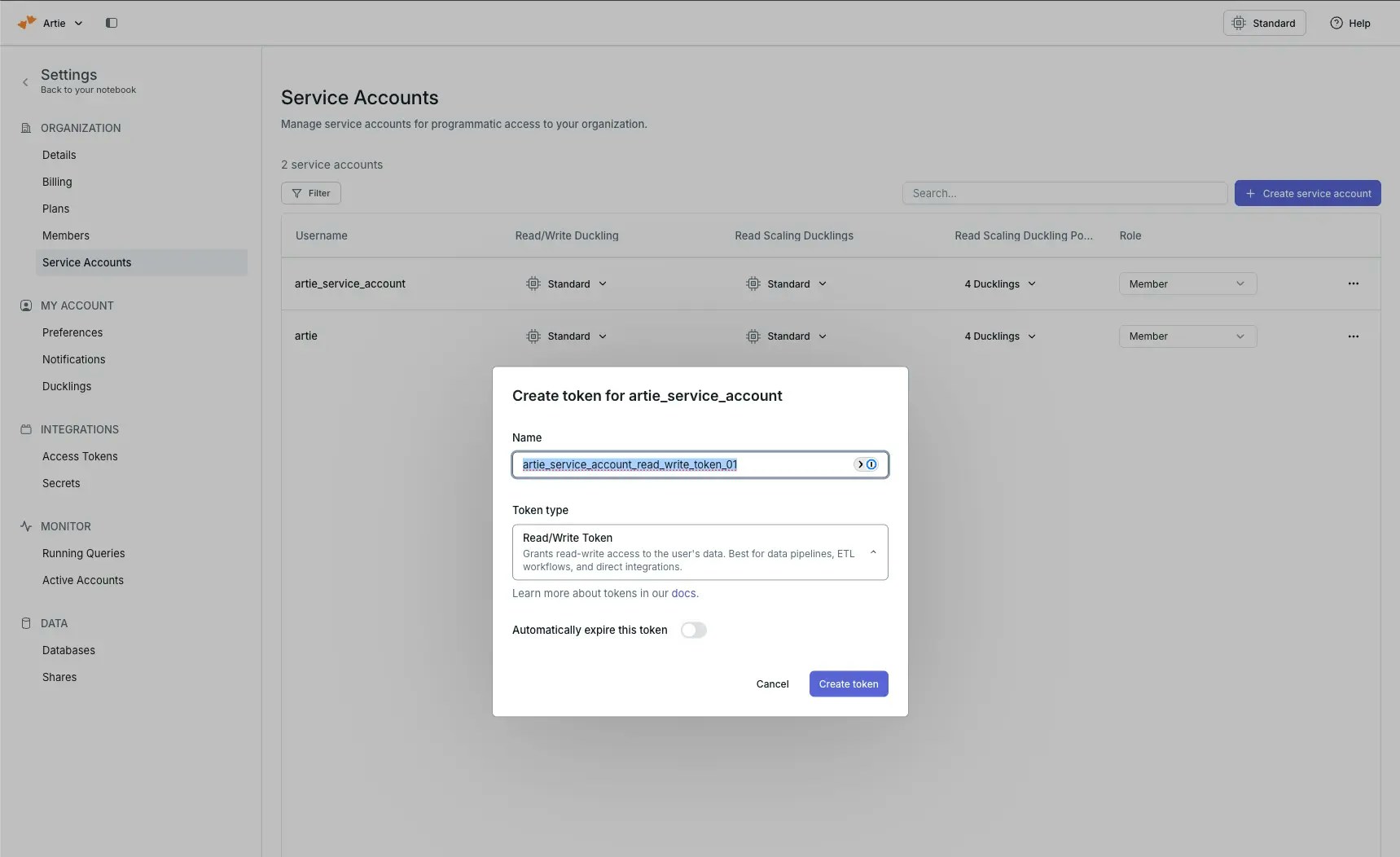
- Service Account (Admin only)
MotherDuck documentation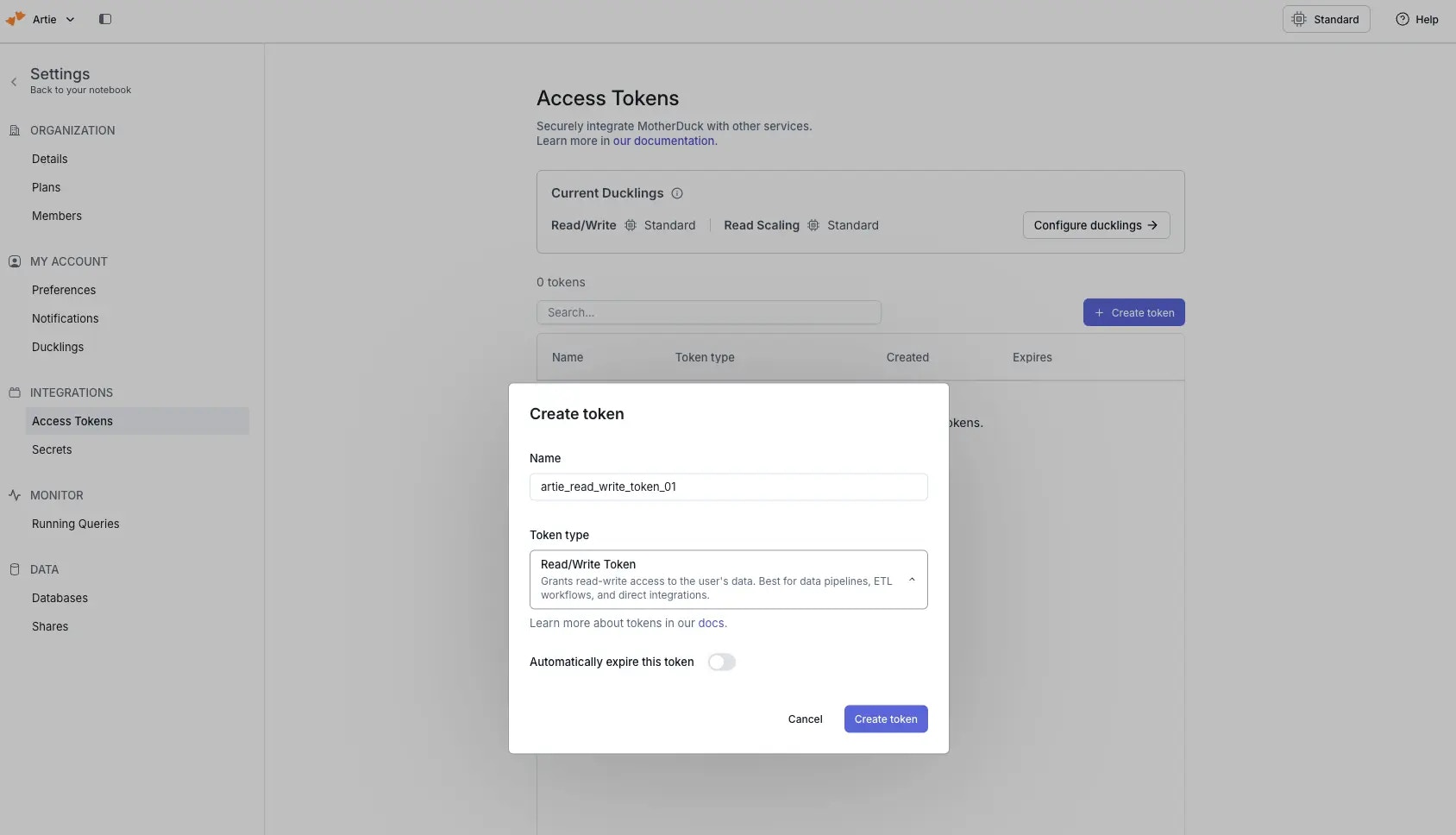
- Navigate to Settings → Access Tokens in MotherDuck
- Click “Create token”
- Fill in the token details
- Select “Read/Write Token” as the token type (required for the pipeline to write data)
- Click “Create token”
2
Verify your pipeline database
Once your pipeline is running, log into MotherDuck with the account you used to create the access token. You should see the database created by your pipeline in the databases list.
If using a service account, you’ll need to impersonate the service account to see the database (Admin only).
Sharing data with your team
By default, data is only accessible to the account that created it. To give your team access, create an organization share and have team members attach it.1
Create an organization share
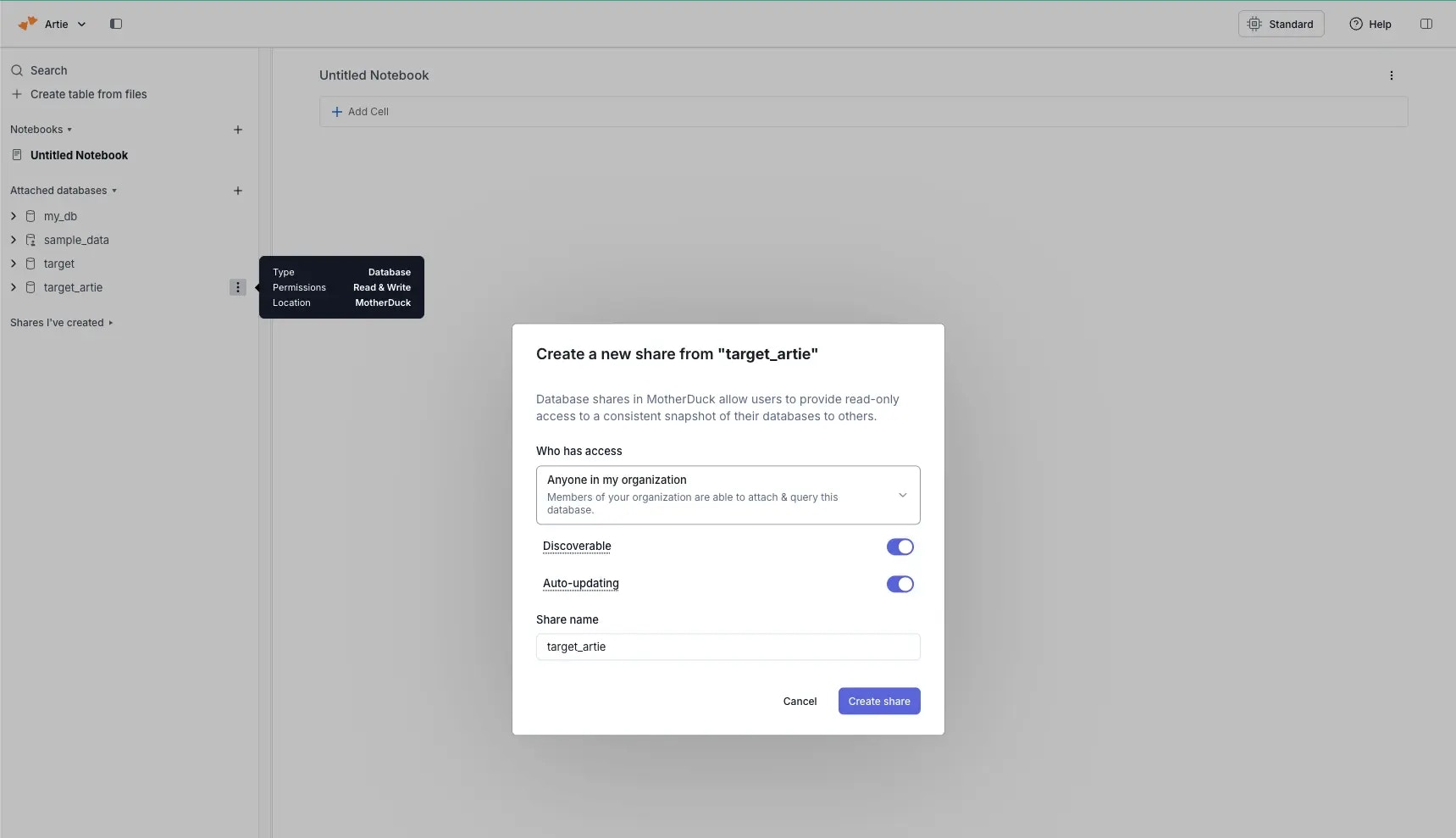
- Click the trident menu (⋮) next to your pipeline database and select “Share”
- Configure the share with:
- Access: Anyone in my organization
- Discoverable: Enabled
- Auto-updating: Enabled
If using a service account, make sure you’re impersonating the service account when creating the share.
2
Team members attach the share
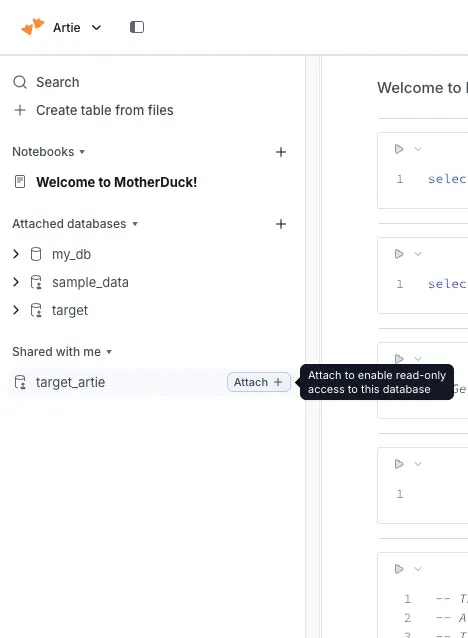
Team members can find the shared database in their MotherDuck workspace under “Shared with me”. Click “Attach” to access the data.