> ## Documentation Index
> Fetch the complete documentation index at: https://artie.com/docs/llms.txt
> Use this file to discover all available pages before exploring further.
# Amazon Aurora and RDS
> Learn how to configure Amazon Aurora and RDS for PostgreSQL as a source in Artie, including service account creation, publication setup, and enabling logical replication.
## Creating a service account
```sql setup.sql theme={null}
CREATE USER artie_transfer WITH PASSWORD 'password';
GRANT USAGE ON SCHEMA schema_name TO artie_transfer;
-- Grant access to existing tables
GRANT SELECT ON ALL TABLES IN SCHEMA schema_name TO artie_transfer;
-- Grant read-only access to future tables created by current user
ALTER DEFAULT PRIVILEGES IN SCHEMA schema_name GRANT SELECT ON TABLES TO artie_transfer;
-- The replication role does not have enough permissions to create publications.
-- So you will need to create this as well.
CREATE PUBLICATION dbz_publication FOR ALL TABLES WITH (publish_via_partition_root = true);
-- Grant replication role
GRANT rds_replication to artie_transfer;
```
### Granting access if another user will run ddl
For all other users that will run `CREATE TABLE` statements please run
```sql grant.sql theme={null}
-- Grant read-only access to future tables for given user
ALTER DEFAULT PRIVILEGES FOR ROLE given_user IN SCHEMA schema_name GRANT SELECT ON TABLES TO artie_transfer;
```
## Turning on logical replication
**rds.logical\_replication** is a [static](https://docs.aws.amazon.com/AmazonRDS/latest/UserGuide/Appendix.PostgreSQL.CommonDBATasks.Parameters.html) parameter which requires a database reboot to take effect.
* Select your database instance
* Go into `Configuration` and find your `DB instance parameter group` (or `DB cluster parameter group` if you are using Aurora)
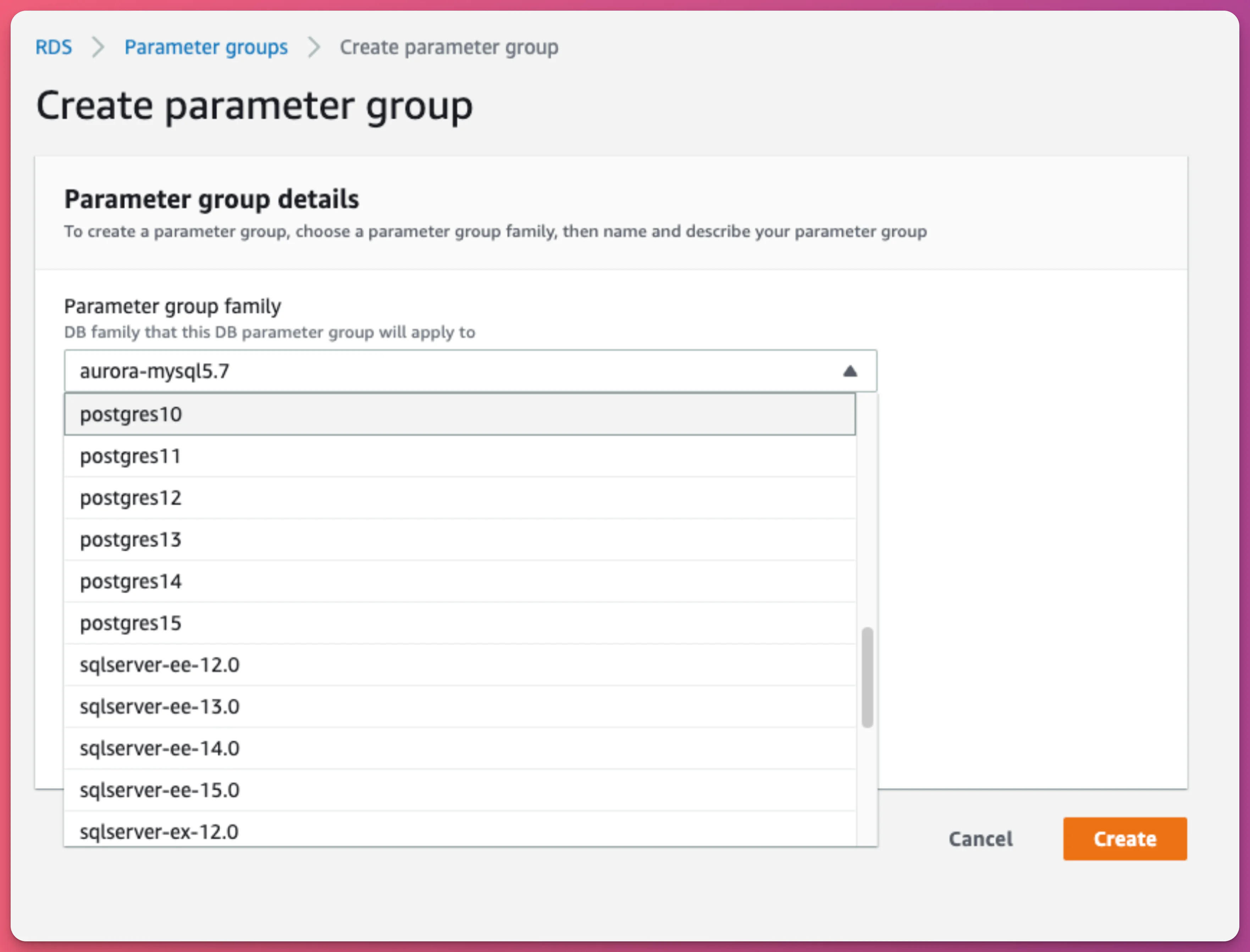
* If you don't have one, go to `Parameter groups` and click `Create parameter group`
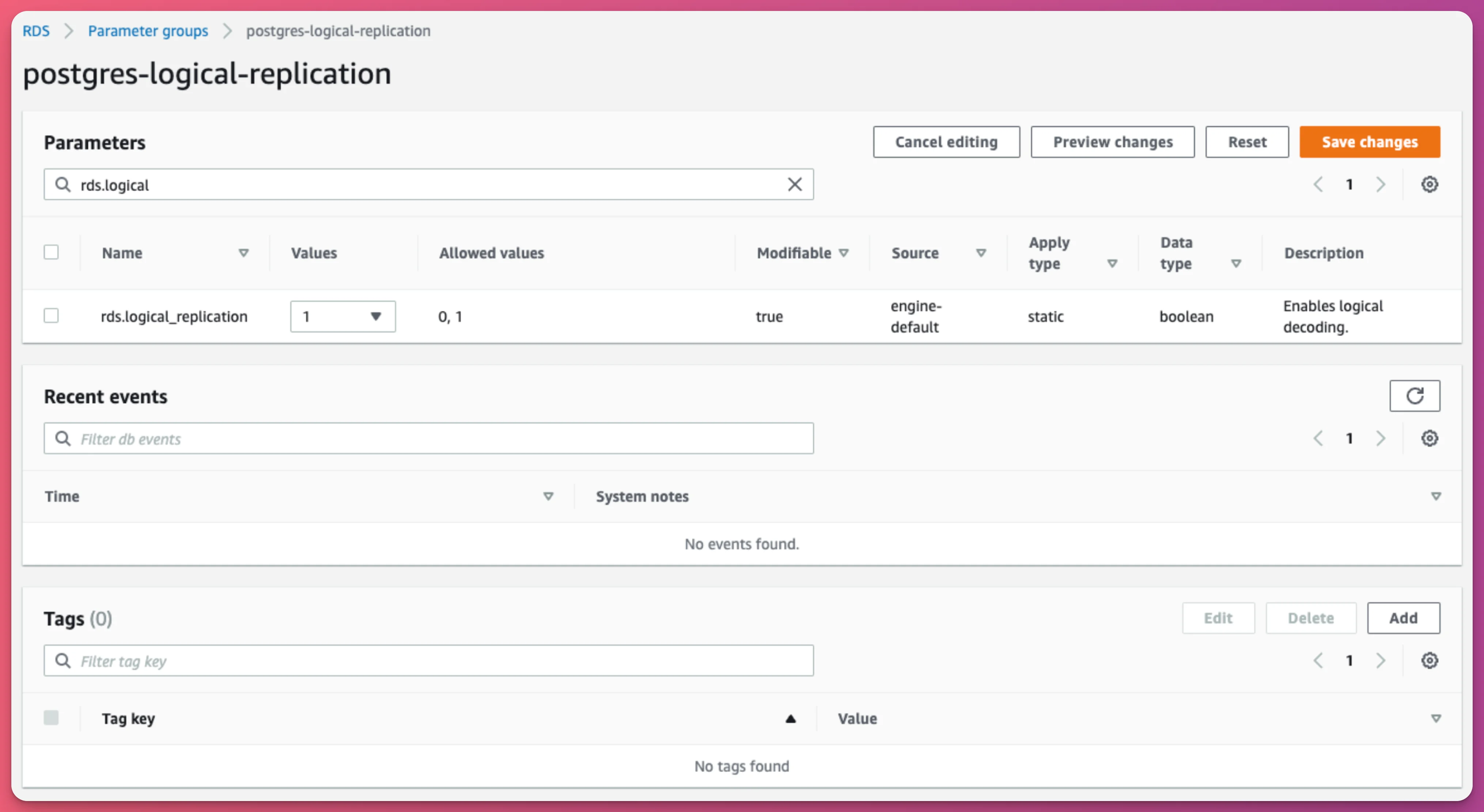
* Find and change `rds.logical_replication` and set it to `1`
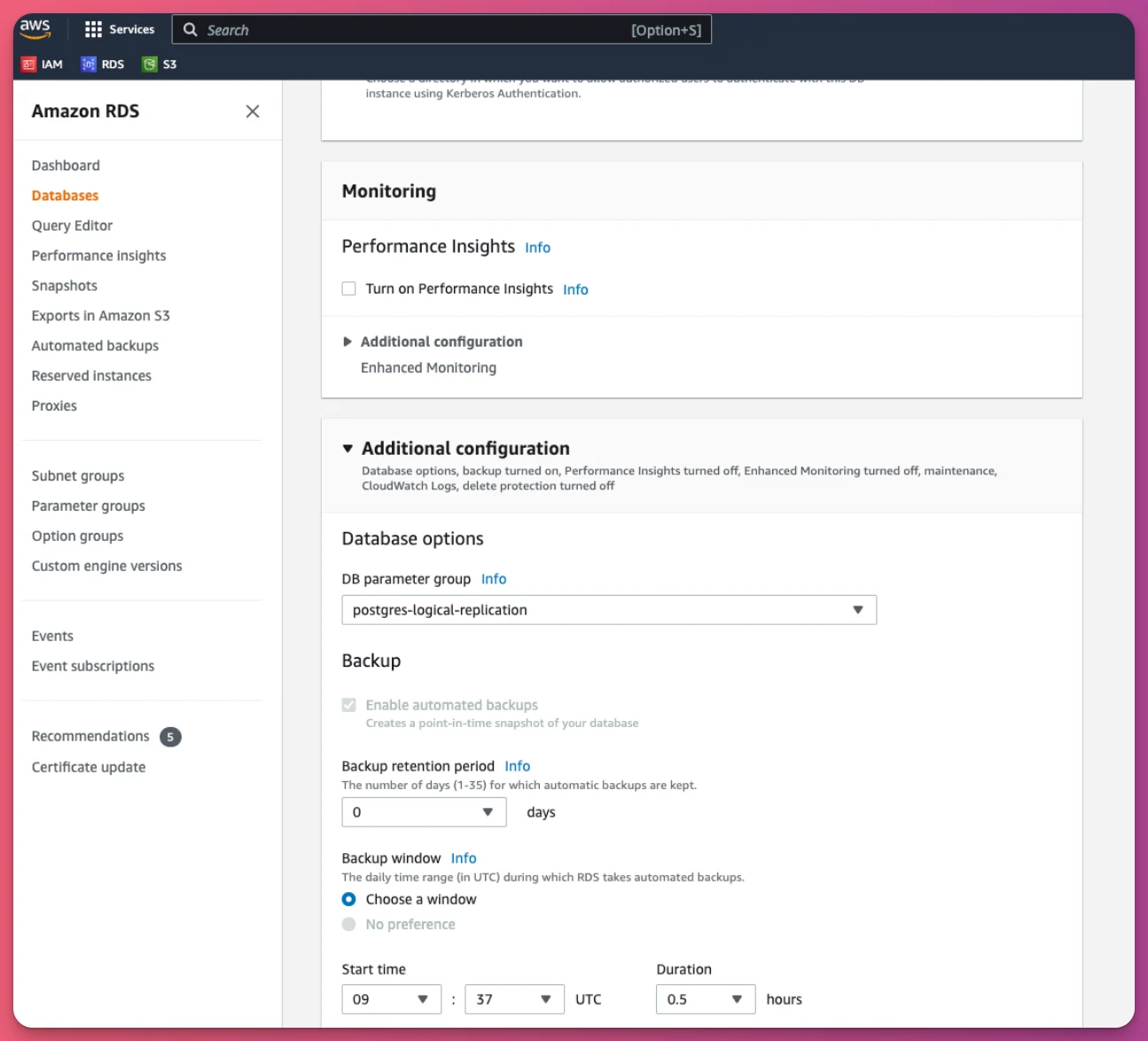
* Associate the parameter group with your database instance
Create a parameter group
 Change `rds.logical_replication` to `1`
 Associate the parameter group with your database instance