> ## Documentation Index
> Fetch the complete documentation index at: https://artie.com/docs/llms.txt
> Use this file to discover all available pages before exploring further.
# Snowflake
> Configure Snowflake as a destination in Artie with service account setup, key-pair authentication, and advanced features like turbo mode and eco mode.
## Required settings
* Account identifier
* Virtual warehouse
* Service account
* Database name
* Schema name
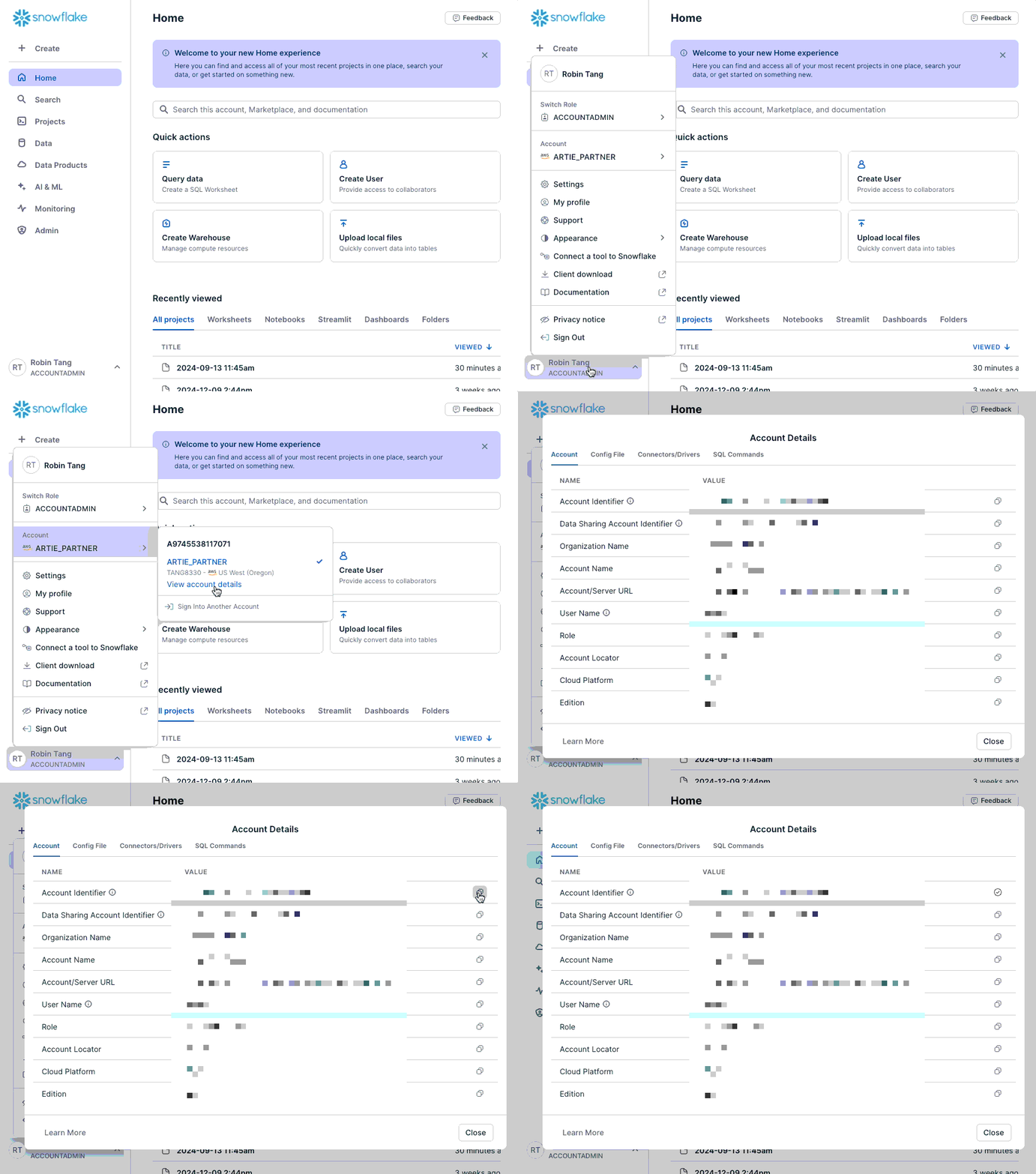
You can find your account identifier at the bottom left corner of your Snowflake console.
 ```sql theme={null}
BEGIN TRANSACTION;
USE ROLE ACCOUNTADMIN; -- This combines both SYSADMIN and SECURITYADMIN
-- IMPORTANT, PLEASE FILL THIS OUT AND SAVE THIS --
SET ROLE_NAME = 'ARTIE_TRANSFER_ROLE';
SET SERVICE_USER = 'ARTIE';
SET SERVICE_PW = 'PASSWORD';
SET DWH_NAME = UPPER('DWH');
SET DB_NAME = UPPER('DB_NAME');
SET SCHEMA_NAME = UPPER('public');
-- END IMPORTANT --
SET DB_SCHEMA_NAME = CONCAT($DB_NAME, '.', $SCHEMA_NAME);
CREATE ROLE IF NOT EXISTS identifier($ROLE_NAME);
CREATE USER IF NOT EXISTS identifier($SERVICE_USER)
password = $SERVICE_PW
default_role = $ROLE_NAME;
GRANT ROLE identifier($role_name) to USER identifier($SERVICE_USER);
CREATE WAREHOUSE IF NOT EXISTS identifier($DWH_NAME)
warehouse_size = xsmall
warehouse_type = standard
auto_suspend = 10
auto_resume = true
initially_suspended = true;
CREATE DATABASE IF NOT EXISTS identifier($DB_NAME);
CREATE SCHEMA IF NOT EXISTS identifier($DB_SCHEMA_NAME);
GRANT USAGE ON WAREHOUSE identifier($DWH_NAME) TO ROLE identifier($ROLE_NAME);
GRANT USAGE ON DATABASE identifier($DB_NAME) TO ROLE identifier($ROLE_NAME);
GRANT ALL PRIVILEGES ON SCHEMA identifier($DB_SCHEMA_NAME) TO ROLE IDENTIFIER($ROLE_NAME);
GRANT ALL PRIVILEGES ON ALL TABLES IN SCHEMA identifier($DB_SCHEMA_NAME) TO ROLE IDENTIFIER($ROLE_NAME);
GRANT ALL PRIVILEGES ON FUTURE TABLES IN SCHEMA identifier($DB_SCHEMA_NAME) TO ROLE IDENTIFIER($ROLE_NAME);
COMMIT;
```
To use key-pair authentication, you will want to generate an RSA key pair.
```bash theme={null}
openssl genrsa 2048 | openssl pkcs8 -topk8 -inform PEM -out rsa_key.p8 -nocrypt
openssl rsa -in rsa_key.p8 -pubout -out rsa_key.pub
```
Then upload the public key to Snowflake
```sql theme={null}
ALTER USER ARTIE SET RSA_PUBLIC_KEY='MIIBIjANBgkqh...';
```
Once this is done, provide us the private key to authenticate with.
## Advanced features
### Snowflake turbo mode
Snowflake turbo mode allows you to switch between **warehouse sizes** based on your data volume and lag.
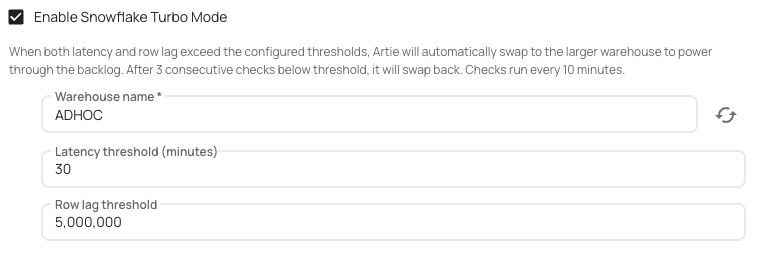
Artie continuously monitors the ingestion lag and row backlog for each pipeline writing to Snowflake. When both metrics exceed configurable thresholds, Artie automatically switches the pipeline to a larger Snowflake warehouse to accelerate catch-up.
Once the backlog clears and metrics stay below thresholds for several consecutive checks, Artie scales back down to the pipeline's normal warehouse.
#### How it works
Every 10 minutes, Artie queries the pipeline's current ingestion latency (in minutes) and pending row count.
If both the latency and row backlog exceed their thresholds, the pipeline is switched to the configured turbo warehouse and you are notified.
Once **both metrics** drop below thresholds for **3 consecutive checks**, the pipeline is returned to its normal warehouse and you are notified again.
#### Configuration
| Setting | Default | Description |
| ----------------- | -------------- | ------------------------------------------------------------------------------------------------ |
| Turbo Warehouse | (required) | The larger Snowflake warehouse to use during high-load periods. |
| Latency Threshold | 30 minutes | Ingestion lag must exceed this value (along with the row threshold) to trigger scale-up. |
| Row Threshold | 5,000,000 rows | Pending row count must exceed this value (along with the latency threshold) to trigger scale-up. |
You can activate this feature by going to your pipeline's destination advanced settings.
#### Key behaviors
* Both thresholds must be exceeded simultaneously to activate turbo mode - a spike in only one metric will not trigger a scale-up.
* Scale-down requires 3 consecutive below-threshold checks to avoid flapping between warehouses.
* You will receive a notification whenever turbo mode is activated or deactivated.
```sql theme={null}
BEGIN TRANSACTION;
USE ROLE ACCOUNTADMIN; -- This combines both SYSADMIN and SECURITYADMIN
-- IMPORTANT, PLEASE FILL THIS OUT AND SAVE THIS --
SET ROLE_NAME = 'ARTIE_TRANSFER_ROLE';
SET SERVICE_USER = 'ARTIE';
SET SERVICE_PW = 'PASSWORD';
SET DWH_NAME = UPPER('DWH');
SET DB_NAME = UPPER('DB_NAME');
SET SCHEMA_NAME = UPPER('public');
-- END IMPORTANT --
SET DB_SCHEMA_NAME = CONCAT($DB_NAME, '.', $SCHEMA_NAME);
CREATE ROLE IF NOT EXISTS identifier($ROLE_NAME);
CREATE USER IF NOT EXISTS identifier($SERVICE_USER)
password = $SERVICE_PW
default_role = $ROLE_NAME;
GRANT ROLE identifier($role_name) to USER identifier($SERVICE_USER);
CREATE WAREHOUSE IF NOT EXISTS identifier($DWH_NAME)
warehouse_size = xsmall
warehouse_type = standard
auto_suspend = 10
auto_resume = true
initially_suspended = true;
CREATE DATABASE IF NOT EXISTS identifier($DB_NAME);
CREATE SCHEMA IF NOT EXISTS identifier($DB_SCHEMA_NAME);
GRANT USAGE ON WAREHOUSE identifier($DWH_NAME) TO ROLE identifier($ROLE_NAME);
GRANT USAGE ON DATABASE identifier($DB_NAME) TO ROLE identifier($ROLE_NAME);
GRANT ALL PRIVILEGES ON SCHEMA identifier($DB_SCHEMA_NAME) TO ROLE IDENTIFIER($ROLE_NAME);
GRANT ALL PRIVILEGES ON ALL TABLES IN SCHEMA identifier($DB_SCHEMA_NAME) TO ROLE IDENTIFIER($ROLE_NAME);
GRANT ALL PRIVILEGES ON FUTURE TABLES IN SCHEMA identifier($DB_SCHEMA_NAME) TO ROLE IDENTIFIER($ROLE_NAME);
COMMIT;
```
To use key-pair authentication, you will want to generate an RSA key pair.
```bash theme={null}
openssl genrsa 2048 | openssl pkcs8 -topk8 -inform PEM -out rsa_key.p8 -nocrypt
openssl rsa -in rsa_key.p8 -pubout -out rsa_key.pub
```
Then upload the public key to Snowflake
```sql theme={null}
ALTER USER ARTIE SET RSA_PUBLIC_KEY='MIIBIjANBgkqh...';
```
Once this is done, provide us the private key to authenticate with.
## Advanced features
### Snowflake turbo mode
Snowflake turbo mode allows you to switch between **warehouse sizes** based on your data volume and lag.
Artie continuously monitors the ingestion lag and row backlog for each pipeline writing to Snowflake. When both metrics exceed configurable thresholds, Artie automatically switches the pipeline to a larger Snowflake warehouse to accelerate catch-up.
Once the backlog clears and metrics stay below thresholds for several consecutive checks, Artie scales back down to the pipeline's normal warehouse.
#### How it works
Every 10 minutes, Artie queries the pipeline's current ingestion latency (in minutes) and pending row count.
If both the latency and row backlog exceed their thresholds, the pipeline is switched to the configured turbo warehouse and you are notified.
Once **both metrics** drop below thresholds for **3 consecutive checks**, the pipeline is returned to its normal warehouse and you are notified again.
#### Configuration
| Setting | Default | Description |
| ----------------- | -------------- | ------------------------------------------------------------------------------------------------ |
| Turbo Warehouse | (required) | The larger Snowflake warehouse to use during high-load periods. |
| Latency Threshold | 30 minutes | Ingestion lag must exceed this value (along with the row threshold) to trigger scale-up. |
| Row Threshold | 5,000,000 rows | Pending row count must exceed this value (along with the latency threshold) to trigger scale-up. |
You can activate this feature by going to your pipeline's destination advanced settings.
#### Key behaviors
* Both thresholds must be exceeded simultaneously to activate turbo mode - a spike in only one metric will not trigger a scale-up.
* Scale-down requires 3 consecutive below-threshold checks to avoid flapping between warehouses.
* You will receive a notification whenever turbo mode is activated or deactivated.
 ### Snowflake eco mode
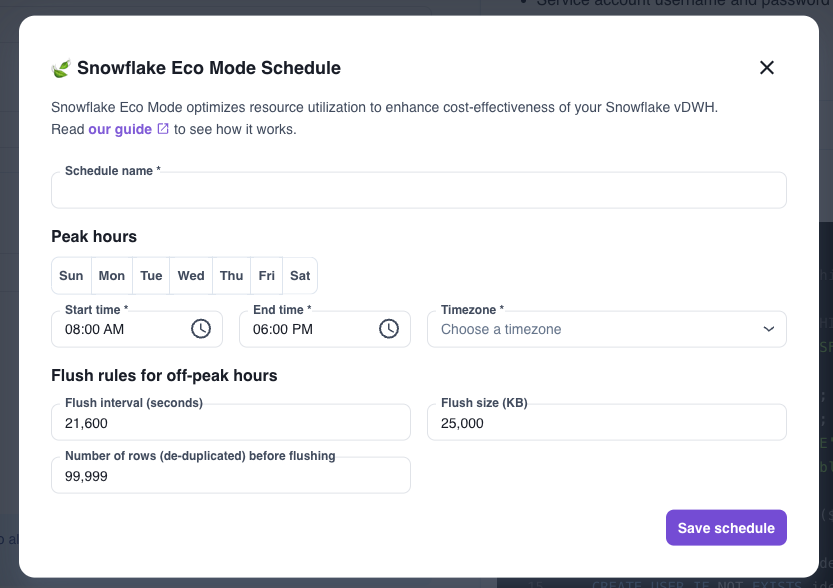
Snowflake eco mode is a great option if you only need faster data syncs during business hours. Click [here](https://www.artie.com/blogs/snowflake-eco-mode) to learn more!
1. Edit your pipeline
2. Go into the `Destinations` tab
3. Open `Advanced settings` and select `+ New schedule`
4. Define your peak hours and your time zone
5. Define your flush rules for off-peak hours
6. Save schedule
7. Deploy your changes
### Snowflake eco mode
Snowflake eco mode is a great option if you only need faster data syncs during business hours. Click [here](https://www.artie.com/blogs/snowflake-eco-mode) to learn more!
1. Edit your pipeline
2. Go into the `Destinations` tab
3. Open `Advanced settings` and select `+ New schedule`
4. Define your peak hours and your time zone
5. Define your flush rules for off-peak hours
6. Save schedule
7. Deploy your changes
 ## Troubleshooting
To start, We would recommend you to go with a `x-small` and decide whether or not you need to scale based off of our Snowflake insights metrics from our Analytics portal.
Generally speaking, if your overall query execution time is high, then you may want to scale to a larger instance. If your queued overload time is high, you may want to have more virtual warehouse nodes to increase your parallelizable slots.
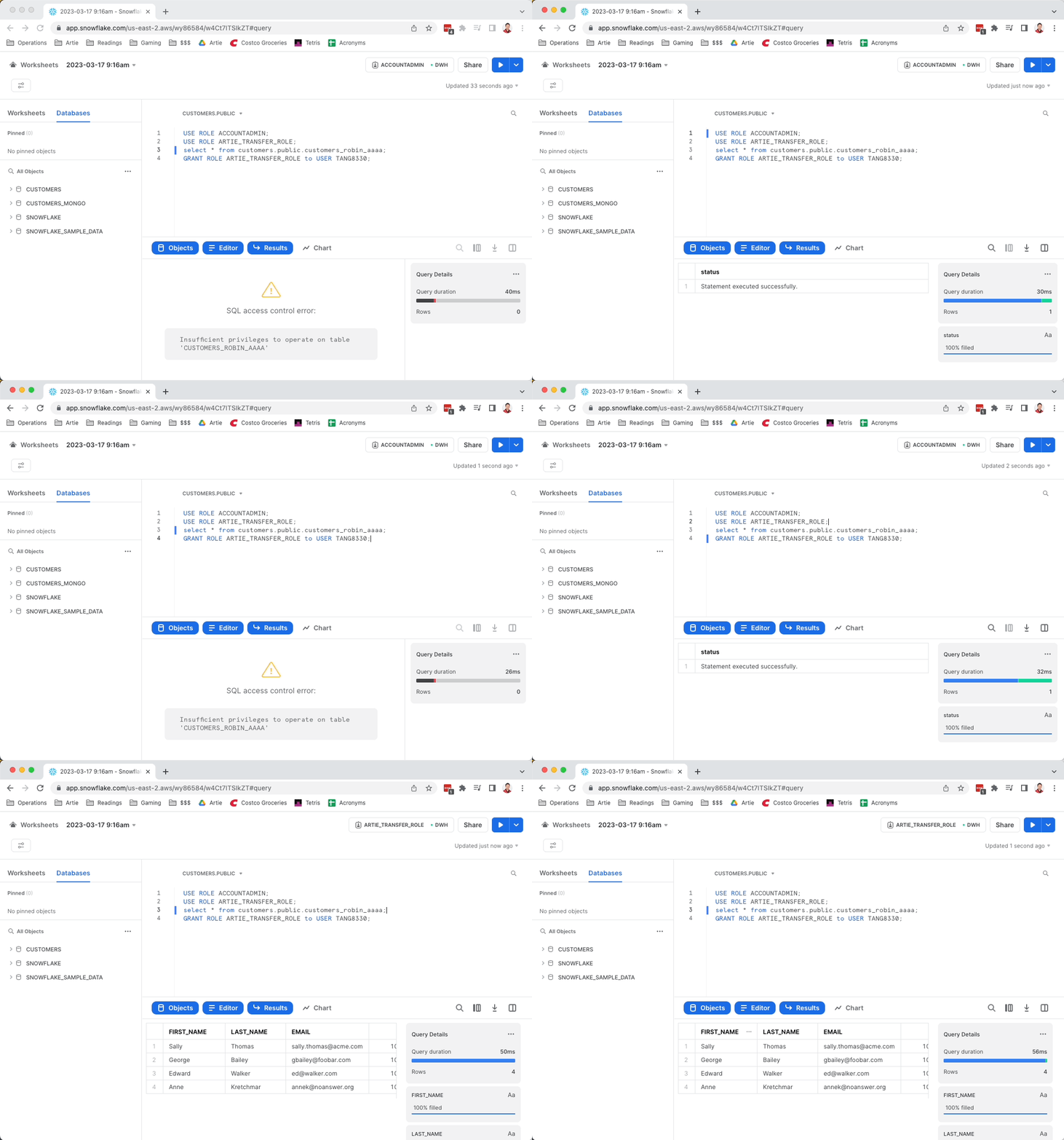
Snowflake's native RBAC makes it so that the account that created the resource is the native owner. To change this, assign the ARTIE service account's role to your account and you will be able to operate on the table. See the GIF below on how to fix this problem.
## Troubleshooting
To start, We would recommend you to go with a `x-small` and decide whether or not you need to scale based off of our Snowflake insights metrics from our Analytics portal.
Generally speaking, if your overall query execution time is high, then you may want to scale to a larger instance. If your queued overload time is high, you may want to have more virtual warehouse nodes to increase your parallelizable slots.
Snowflake's native RBAC makes it so that the account that created the resource is the native owner. To change this, assign the ARTIE service account's role to your account and you will be able to operate on the table. See the GIF below on how to fix this problem.