> ## Documentation Index
> Fetch the complete documentation index at: https://artie.com/docs/llms.txt
> Use this file to discover all available pages before exploring further.
# MotherDuck
> Configure MotherDuck as a destination in Artie. Learn how to create access tokens, set up your pipeline database, and share data across your organization.
## Required settings
* MotherDuck access token (Read/Write)
* Database name
We recommend creating a dedicated MotherDuck account for pipeline writes (either a service account or a regular account like `cdc-writer@company.com`). Data written by this account will only be accessible to that account owner. To share data with your team, see [Sharing data with your team](#sharing-data-with-your-team) below.
## Setup guide
Choose one of the following options to create an access token:
[MotherDuck documentation](https://motherduck.com/docs/key-tasks/authenticating-and-connecting-to-motherduck/authenticating-to-motherduck/#authentication-using-an-access-token)
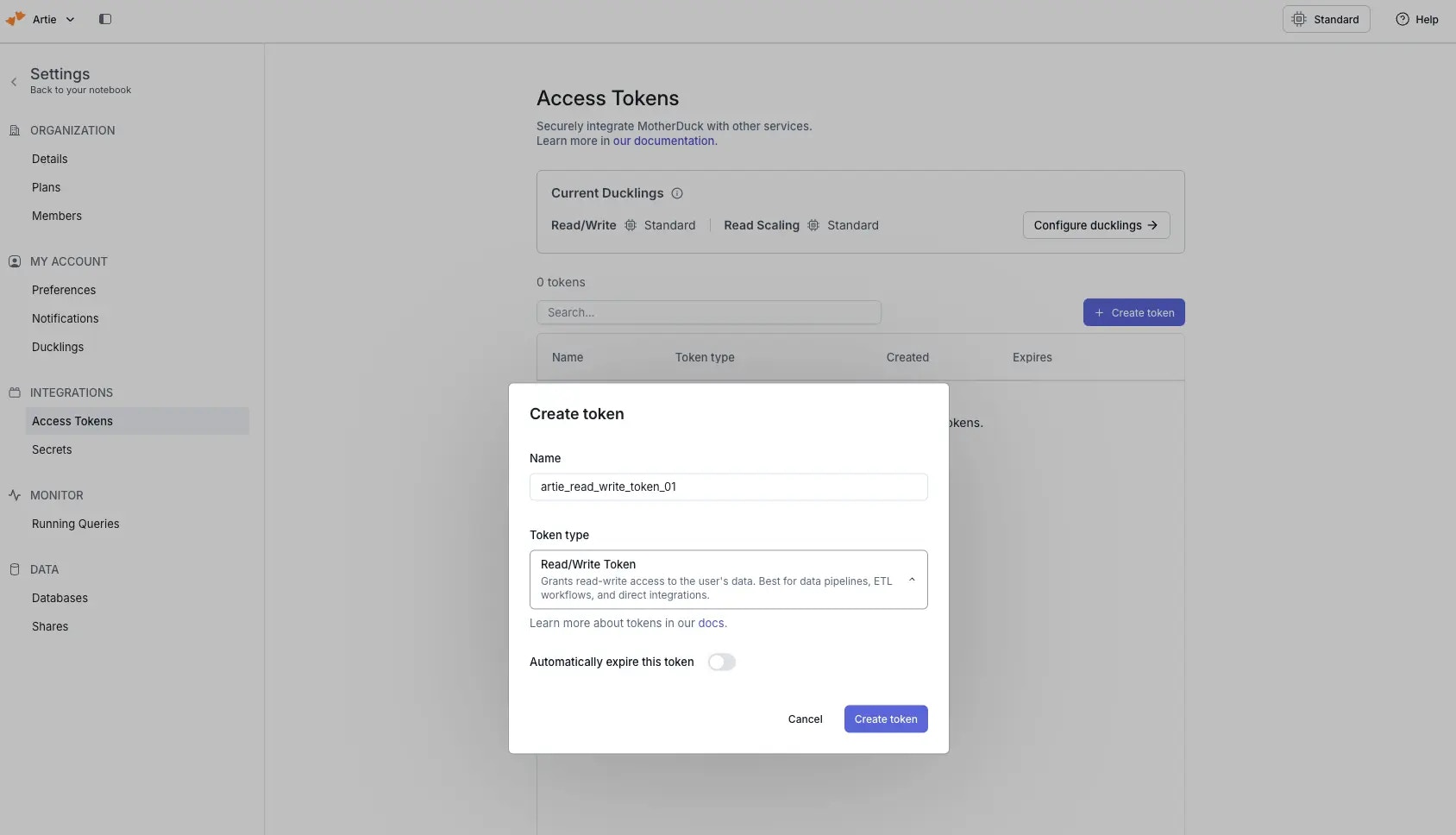
1. Navigate to **Settings → Access Tokens** in MotherDuck
2. Click **"Create token"**
3. Fill in the token details
4. Select **"Read/Write Token"** as the token type (required for the pipeline to write data)
5. Click **"Create token"**
 Copy the token immediately - it's only shown once!
[MotherDuck documentation](https://motherduck.com/docs/key-tasks/service-accounts-guide/)
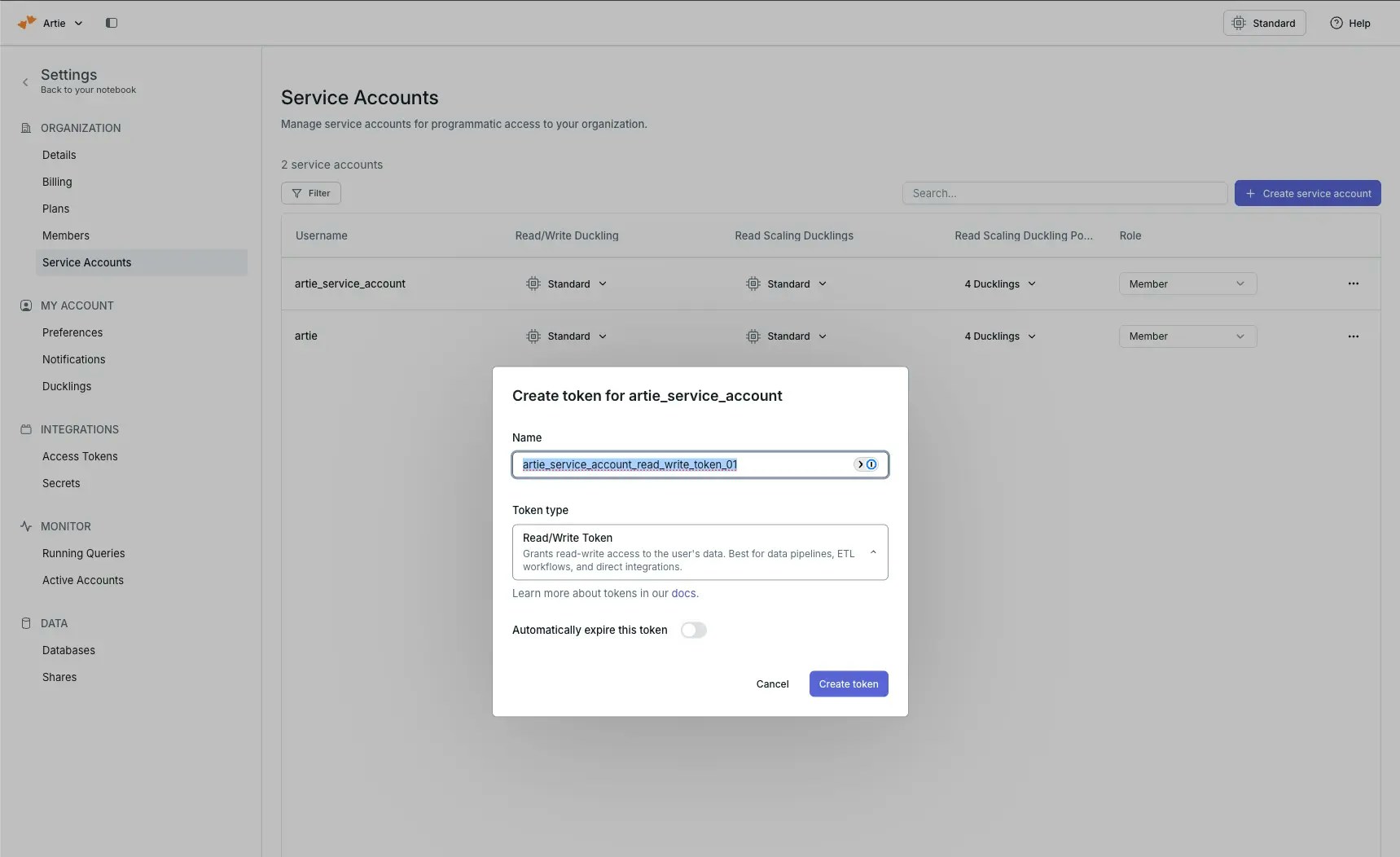
1. Navigate to **Organization Settings -> Service Accounts** in MotherDuck
2. Click **"Create Service Account"**
3. After creating the service account, open it and generate an access token
4. Select **"Read/Write Token"** as the token type (required for the pipeline to write data)
Copy the token immediately - it's only shown once!
[MotherDuck documentation](https://motherduck.com/docs/key-tasks/service-accounts-guide/)
1. Navigate to **Organization Settings -> Service Accounts** in MotherDuck
2. Click **"Create Service Account"**
3. After creating the service account, open it and generate an access token
4. Select **"Read/Write Token"** as the token type (required for the pipeline to write data)
 Copy the token immediately - it's only shown once!
Once your pipeline is running, log into MotherDuck with the account you used to create the access token. You should see the database created by your pipeline in the databases list.
If using a service account, you'll need to **impersonate the service account** to see the database (Admin only).
## Sharing data with your team
By default, data is only accessible to the account that created it. To give your team access, create an organization share and have team members attach it.
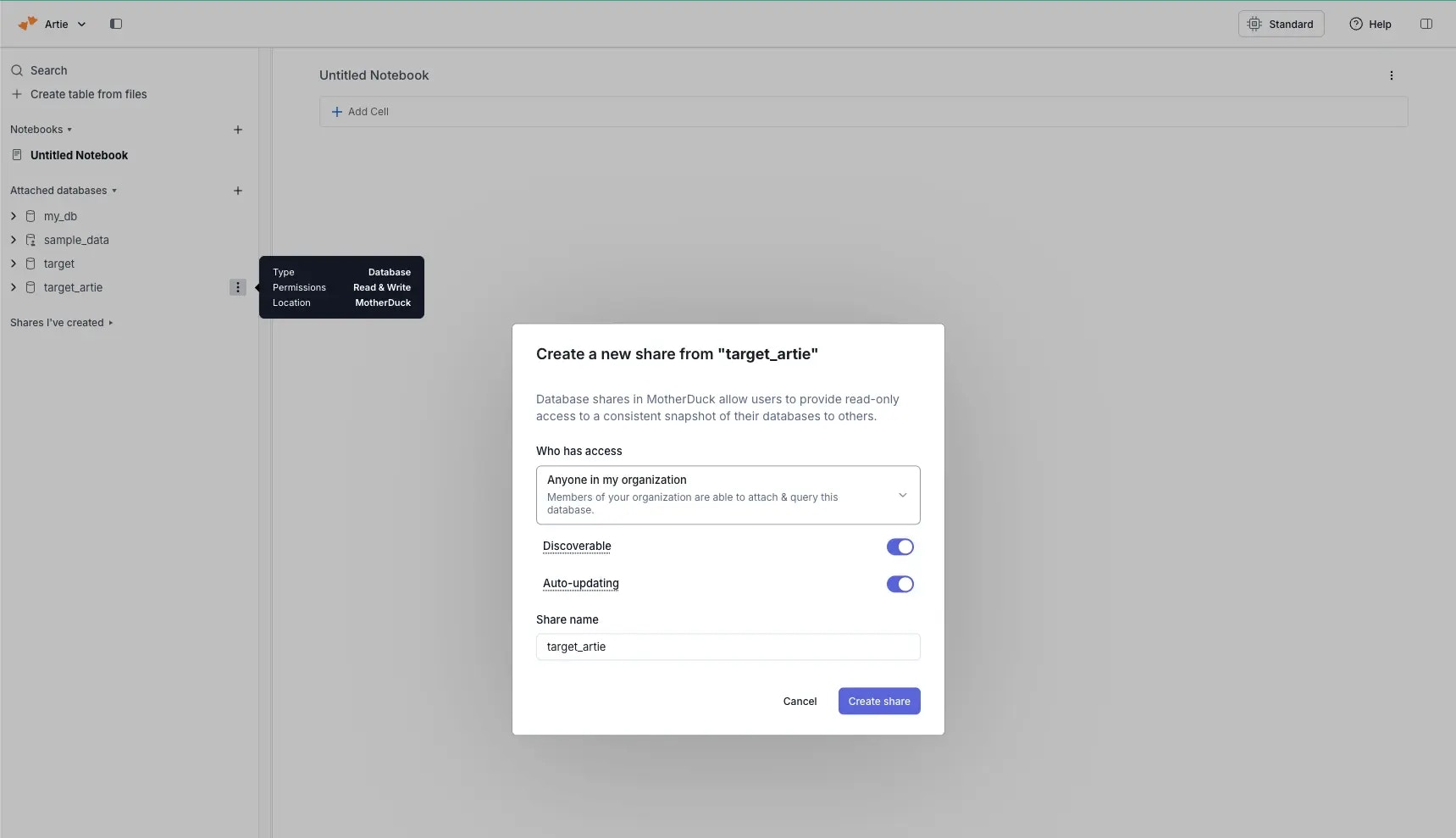
1. Click the trident menu (⋮) next to your pipeline database and select **"Share"**
2. Configure the share with:
* **Access:** Anyone in my organization
* **Discoverable:** Enabled
* **Auto-updating:** Enabled
If using a service account, make sure you're impersonating the service account when creating the share.
Copy the token immediately - it's only shown once!
Once your pipeline is running, log into MotherDuck with the account you used to create the access token. You should see the database created by your pipeline in the databases list.
If using a service account, you'll need to **impersonate the service account** to see the database (Admin only).
## Sharing data with your team
By default, data is only accessible to the account that created it. To give your team access, create an organization share and have team members attach it.
1. Click the trident menu (⋮) next to your pipeline database and select **"Share"**
2. Configure the share with:
* **Access:** Anyone in my organization
* **Discoverable:** Enabled
* **Auto-updating:** Enabled
If using a service account, make sure you're impersonating the service account when creating the share.
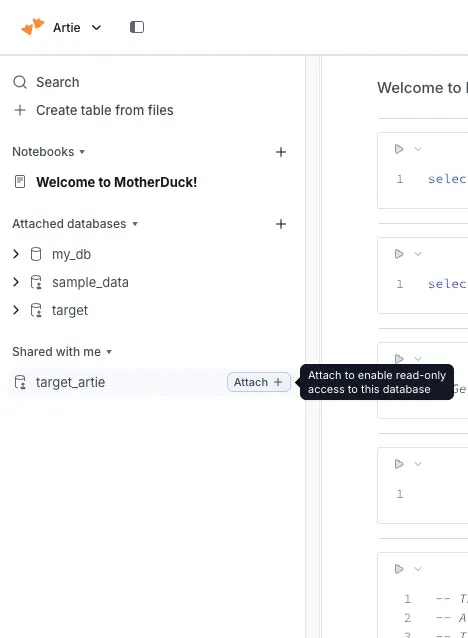
 Team members can find the shared database in their MotherDuck workspace under **"Shared with me"**. Click **"Attach"** to access the data.