> ## Documentation Index
> Fetch the complete documentation index at: https://artie.com/docs/llms.txt
> Use this file to discover all available pages before exploring further.
# Databricks
> Learn how to configure Databricks as a destination in Artie, including SQL warehouse connection details, Unity Catalog setup, volume configuration, and access tokens.
## Required settings
* SQL warehouse host and path
* Unity catalog name
* Volume name
* Personal access token
### Volume
Artie will write our temporary files to a volume in the catalog and schema that we are syncing into.
```sql theme={null}
CREATE VOLUME my_catalog.my_schema.my_volume;
```
Go into your Databricks workspace, select the SQL warehouse you want to use and click on Connection details.
From there, you will be able to find the host and path of your SQL warehouse.
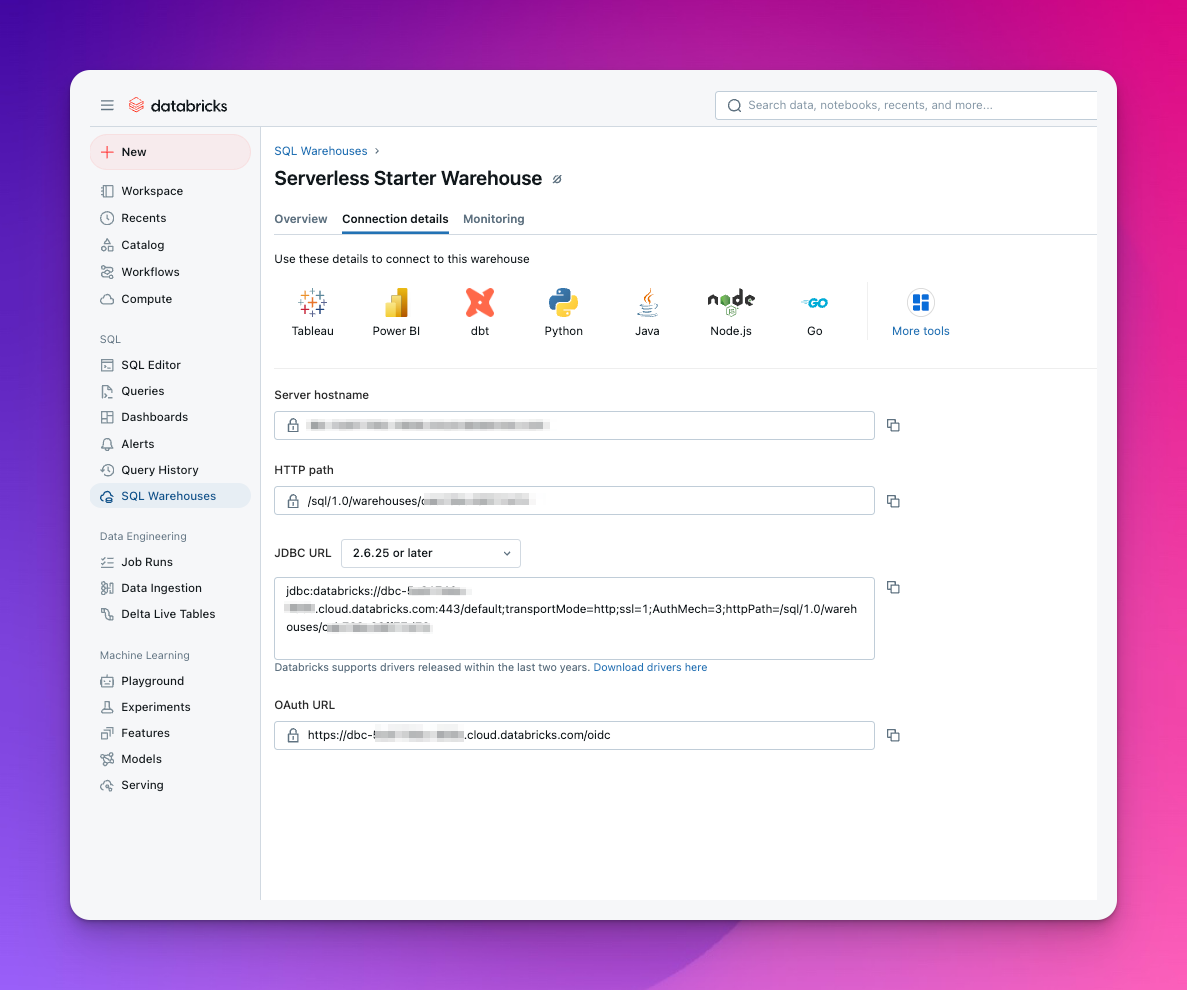 To generate a personal access token, go into your workspace and do the following:
1. Click on your username in the top bar and select `Settings` from the dropdown.
2. Click `Developer`
3. Click `Access tokens` then `Generate new token`
4. (Optional) Provide a description for the token and if you set expiration, make sure to note it down.
We are fetching your schema from the [Unity Catalog API](https://docs.databricks.com/api/workspace/schemas/list). If you don't see your desired schema, please make sure the service account has **USE\_SCHEMA** privileges.
To generate a personal access token, go into your workspace and do the following:
1. Click on your username in the top bar and select `Settings` from the dropdown.
2. Click `Developer`
3. Click `Access tokens` then `Generate new token`
4. (Optional) Provide a description for the token and if you set expiration, make sure to note it down.
We are fetching your schema from the [Unity Catalog API](https://docs.databricks.com/api/workspace/schemas/list). If you don't see your desired schema, please make sure the service account has **USE\_SCHEMA** privileges.