> ## Documentation Index
> Fetch the complete documentation index at: https://artie.com/docs/llms.txt
> Use this file to discover all available pages before exploring further.
# BigQuery
> Learn how to configure Google BigQuery as a destination in Artie, including project setup, dataset configuration, service account credentials, and query priority settings.
## Required settings
* Project identifier
* Dataset
* Service account
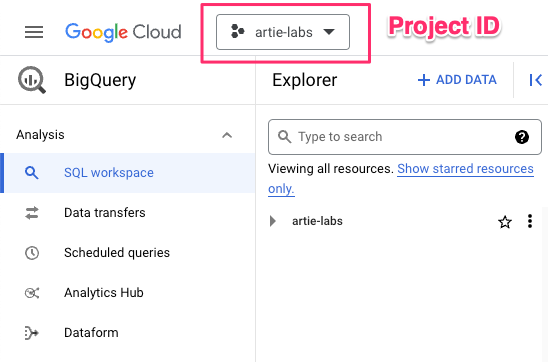
Go into your [BigQuery console](https://console.cloud.google.com/bigquery) and the project ID is at the top of the navigation bar.
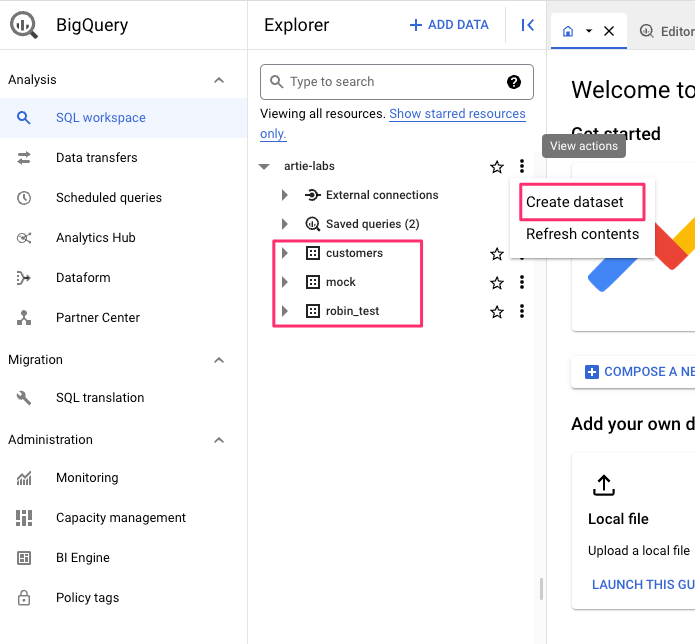
 To find this out, go to [BigQuery console](https://console.cloud.google.com/bigquery), and you will see the dataset name on the left side of the screen.
 To create a service account, please do the following:
1. Go to the `IAM & Admin` section in your GCP console and click `Service Accounts`.
2. Click on `Create Service Account`, give it a name and click `Create and Continue`.
3. Grant the `BigQuery Admin` role to the service account click `Done`.
4. Go into the service account you just created and click on `Keys` and then `Add Key`.
5. Choose `JSON` and click `Create`. This will download a JSON file with your credentials.
## Queue priority
BigQuery supports two query priority modes that determine how your queries are scheduled and executed.
| Mode | Description |
| --------------- | ---------------------------------------------------------------------------------------------------------------------------------------------------------------- |
| **INTERACTIVE** | Queries are executed as soon as possible and count against BigQuery's concurrent query limits. Best for time-sensitive operations where low latency is critical. |
| **BATCH** | Queries are queued and executed when resources become available. Does not count against concurrent query limits. Best for large, non-urgent workloads. |
By default, Artie uses **INTERACTIVE** priority.
### Pricing model considerations
The impact of queue priority depends on your BigQuery pricing model:
With on-demand pricing, you pay per byte scanned regardless of priority mode. The key differences are:
* **INTERACTIVE** counts against your project's concurrent query limit (default: 100 queries)
* **BATCH** does not count against concurrent limits, avoiding potential throttling during high-throughput periods
**Recommendation**: Consider using BATCH for CDC workloads to avoid hitting concurrency limits during peak replication.
With capacity slots (BigQuery Editions), you pay for reserved compute capacity. The key differences are:
* **INTERACTIVE** queries get prioritized access to your allocated slots
* **BATCH** queries only run when slots are available after INTERACTIVE queries are served
**Recommendation**: Use INTERACTIVE since you're paying for dedicated slots and want your CDC queries to run immediately rather than wait behind other workloads.
### Best practices
* Consider [partitioning](/guides/database/bigquery/enable-bigquery-partitioning) your large tables to improve merge performance and reduce costs.
* Review the [capacity pricing guide](/guides/database/bigquery/capacity-pricing) to understand BigQuery's pricing models and avoid unexpected bills.
To create a service account, please do the following:
1. Go to the `IAM & Admin` section in your GCP console and click `Service Accounts`.
2. Click on `Create Service Account`, give it a name and click `Create and Continue`.
3. Grant the `BigQuery Admin` role to the service account click `Done`.
4. Go into the service account you just created and click on `Keys` and then `Add Key`.
5. Choose `JSON` and click `Create`. This will download a JSON file with your credentials.
## Queue priority
BigQuery supports two query priority modes that determine how your queries are scheduled and executed.
| Mode | Description |
| --------------- | ---------------------------------------------------------------------------------------------------------------------------------------------------------------- |
| **INTERACTIVE** | Queries are executed as soon as possible and count against BigQuery's concurrent query limits. Best for time-sensitive operations where low latency is critical. |
| **BATCH** | Queries are queued and executed when resources become available. Does not count against concurrent query limits. Best for large, non-urgent workloads. |
By default, Artie uses **INTERACTIVE** priority.
### Pricing model considerations
The impact of queue priority depends on your BigQuery pricing model:
With on-demand pricing, you pay per byte scanned regardless of priority mode. The key differences are:
* **INTERACTIVE** counts against your project's concurrent query limit (default: 100 queries)
* **BATCH** does not count against concurrent limits, avoiding potential throttling during high-throughput periods
**Recommendation**: Consider using BATCH for CDC workloads to avoid hitting concurrency limits during peak replication.
With capacity slots (BigQuery Editions), you pay for reserved compute capacity. The key differences are:
* **INTERACTIVE** queries get prioritized access to your allocated slots
* **BATCH** queries only run when slots are available after INTERACTIVE queries are served
**Recommendation**: Use INTERACTIVE since you're paying for dedicated slots and want your CDC queries to run immediately rather than wait behind other workloads.
### Best practices
* Consider [partitioning](/guides/database/bigquery/enable-bigquery-partitioning) your large tables to improve merge performance and reduce costs.
* Review the [capacity pricing guide](/guides/database/bigquery/capacity-pricing) to understand BigQuery's pricing models and avoid unexpected bills.