> ## Documentation Index
> Fetch the complete documentation index at: https://artie.com/docs/llms.txt
> Use this file to discover all available pages before exploring further.
# AWS PrivateLink
> Artie supports connections through AWS PrivateLink. You can configure PrivateLink directly from the Artie dashboard.
## How PrivateLink works
```mermaid theme={null}
flowchart LR
subgraph Artie data plane
direction TB
B[VPC endpoint]
end
B -->|PrivateLink| C
subgraph Customer VPC
direction TB
C[Endpoint service] --> D[NLB]
D --> E[("Database")]
end
```
## Pre-requisites
* VPC service
* Region + availability zone IDs
* Cross-region enabled if the region is *not the same* as the specified data plane
* Added Artie ARN (`arn:aws:iam::788826912768:root`) to the VPC service.
For BYOC customers, the Artie ARN may be different. Please reach out to us if you need this ARN.
## Setting up a PrivateLink connection
Go to the [PrivateLink connections tab](https://app.artie.com/settings?tab=privateLinkConnections) under Settings.
Request a new PrivateLink connection and specify the environment, data plane, VPC service name, AZ IDs, and region.
The status will be "Under review" until an Artie team member approves the request.
Once approved, Artie initiates a VPC endpoint request to your VPC service and the status changes to "Pending Acceptance". Accept the endpoint connection in your AWS console under **VPC > Endpoint Services > Endpoint Connections**.
Once accepted, Artie detects the change (checked every 20 minutes), the VPCe DNS will be displayed, and you can create a pipeline using it as the source address.
Artie runs a daily job to verify that all active PrivateLink connections are still connected and working.
## Troubleshooting
If you are having issues with your PrivateLink connections and it's timing out, try our [debugging tool](https://app.artie.com/settings?tab=privateLinkConnections).
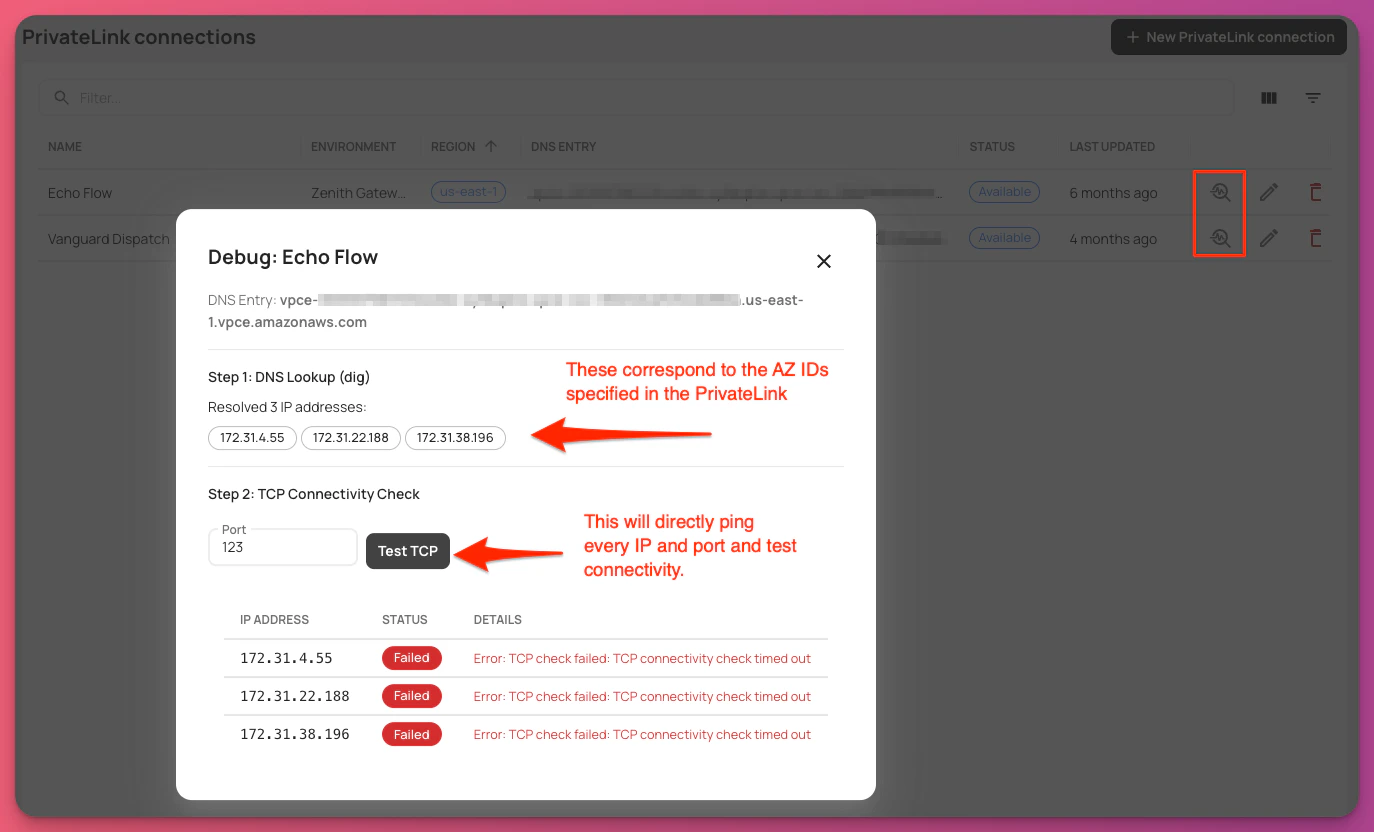 If the debugging tool above does not surface the issue, work through these checks in order.
### Verify availability zone IDs overlap
PrivateLink requires at least one matching availability zone between Artie's VPC endpoint and your endpoint service. If there is no overlap, traffic has no path and the connection will time out silently.
Compare **AZ IDs** (e.g. `use1-az1`), not AZ names (e.g. `us-east-1a`). AWS maps the same AZ name to different physical zones in each account, so names alone are unreliable.
To check:
1. Open **VPC > Endpoint Services** in your AWS console and note the AZ IDs listed under your endpoint service.
2. Compare them against the AZ IDs shown in the Artie dashboard for your PrivateLink connection.
3. Ensure there is at least one AZ ID that appears in both lists.
### Enable cross-zone load balancing on your NLB
If your database targets are registered in a different AZ than the one receiving PrivateLink traffic, the NLB will drop the connection by default.
To fix this:
1. Open **EC2 > Load Balancers** and select your NLB.
2. Go to the **Attributes** tab.
3. Enable **Cross-zone load balancing**.
## Frequently asked questions
### Which region is PrivateLink available in?
PrivateLinks are available in the region your data plane is located in. Reach out to your team if you need to set up PrivateLinks in a different region.
### What if I have multiple databases?
You have two options when it comes to connecting to multiple databases:
1. **(Recommended)** Create one PrivateLink connection and maintain target group mapping to each database within your load balancer.
2. Create a separate PrivateLink connection for each database. This is only necessary if you expect extremely high throughput and you would like to have dedicated resources and isolate the traffic.
### How do I connect to my read-only database for backfills?
Artie supports backfilling from a read-only database. However, if you are using PrivateLink you will want to create a new target group entry for the read-only database.
Please see above **What if I have multiple databases?** for more information.
### How do I configure my NLB to connect to my RDS or Aurora instances?
Aurora and RDS have dynamic IPs and you will need a static IP to add into your NLB target group.
Here are common ways to achieve a static IP:
1. Use a [Lambda function](https://aws.amazon.com/blogs/database/access-amazon-rds-across-vpcs-using-aws-privatelink-and-network-load-balancer/) that will periodically run `dig` or `nslookup` on the database and update the NLB target group with the static IP. (Recommended)
2. Create an EC2 instance with static IP and do port forwarding
If the debugging tool above does not surface the issue, work through these checks in order.
### Verify availability zone IDs overlap
PrivateLink requires at least one matching availability zone between Artie's VPC endpoint and your endpoint service. If there is no overlap, traffic has no path and the connection will time out silently.
Compare **AZ IDs** (e.g. `use1-az1`), not AZ names (e.g. `us-east-1a`). AWS maps the same AZ name to different physical zones in each account, so names alone are unreliable.
To check:
1. Open **VPC > Endpoint Services** in your AWS console and note the AZ IDs listed under your endpoint service.
2. Compare them against the AZ IDs shown in the Artie dashboard for your PrivateLink connection.
3. Ensure there is at least one AZ ID that appears in both lists.
### Enable cross-zone load balancing on your NLB
If your database targets are registered in a different AZ than the one receiving PrivateLink traffic, the NLB will drop the connection by default.
To fix this:
1. Open **EC2 > Load Balancers** and select your NLB.
2. Go to the **Attributes** tab.
3. Enable **Cross-zone load balancing**.
## Frequently asked questions
### Which region is PrivateLink available in?
PrivateLinks are available in the region your data plane is located in. Reach out to your team if you need to set up PrivateLinks in a different region.
### What if I have multiple databases?
You have two options when it comes to connecting to multiple databases:
1. **(Recommended)** Create one PrivateLink connection and maintain target group mapping to each database within your load balancer.
2. Create a separate PrivateLink connection for each database. This is only necessary if you expect extremely high throughput and you would like to have dedicated resources and isolate the traffic.
### How do I connect to my read-only database for backfills?
Artie supports backfilling from a read-only database. However, if you are using PrivateLink you will want to create a new target group entry for the read-only database.
Please see above **What if I have multiple databases?** for more information.
### How do I configure my NLB to connect to my RDS or Aurora instances?
Aurora and RDS have dynamic IPs and you will need a static IP to add into your NLB target group.
Here are common ways to achieve a static IP:
1. Use a [Lambda function](https://aws.amazon.com/blogs/database/access-amazon-rds-across-vpcs-using-aws-privatelink-and-network-load-balancer/) that will periodically run `dig` or `nslookup` on the database and update the NLB target group with the static IP. (Recommended)
2. Create an EC2 instance with static IP and do port forwarding