> ## Documentation Index
> Fetch the complete documentation index at: https://artie.com/docs/llms.txt
> Use this file to discover all available pages before exploring further.
# Microsoft Entra ID SSO
> Configure single sign-on (SSO) for Artie using a Microsoft Entra ID (Azure AD) app registration.
You need to be your company's Entra ID (Azure AD) admin **and** an Artie admin to complete this setup.
**What you'll need before starting:**
* Access to the [Azure portal](https://portal.azure.com) with permission to create app registrations
* Admin access to your Artie account (Settings → Authentication)
## Set up Entra ID
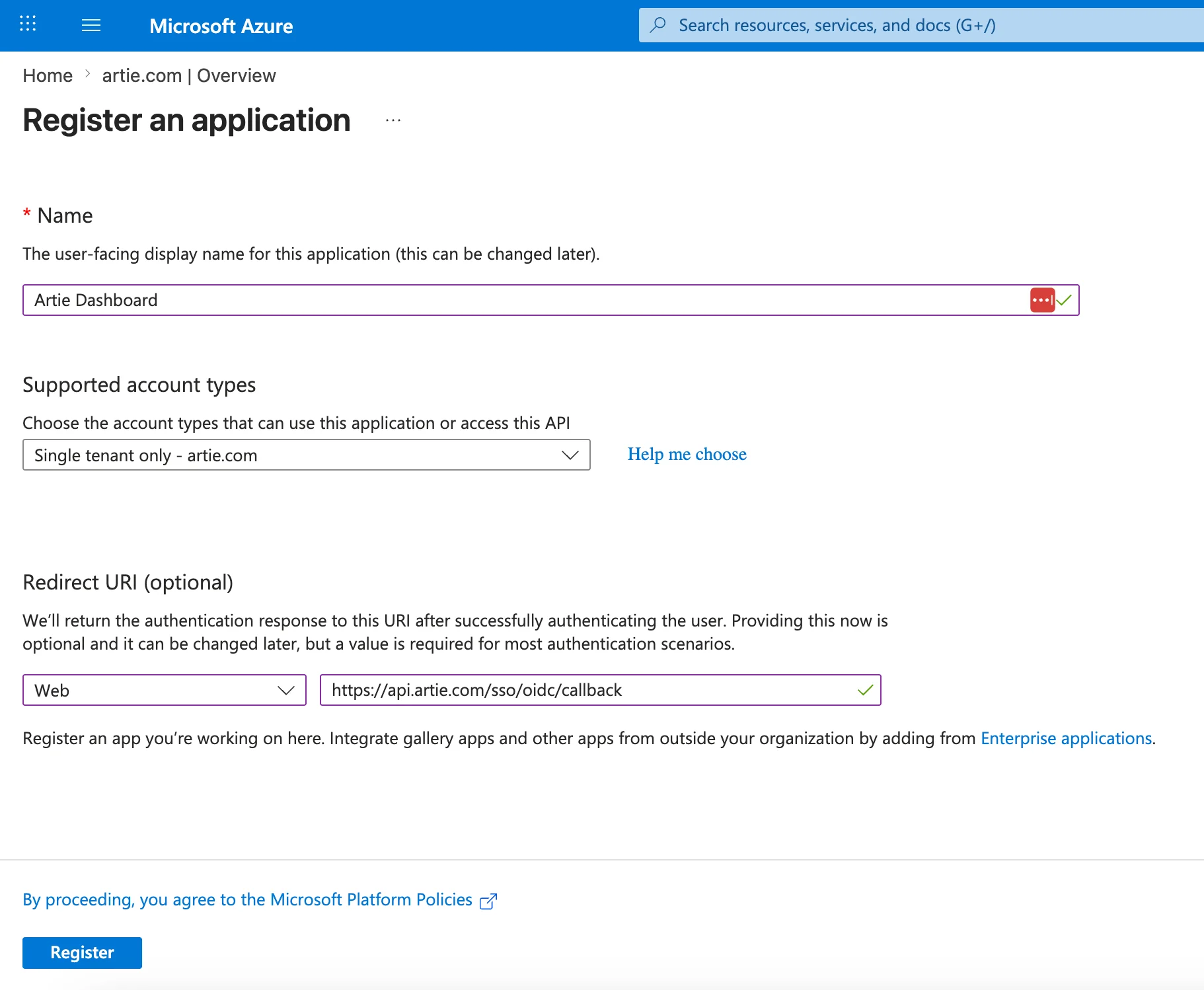
1. Sign in to the [Azure portal](https://portal.azure.com)
2. Go to **Microsoft Entra ID → App registrations**
3. Click **New registration**
4. Fill in the form:
* **Name:** Artie
* **Supported account types:** Accounts in this organizational directory only *(single tenant)*
* **Redirect URI:** select **Web** and enter `https://api.artie.com/sso/oidc/callback`
5. Click **Register**
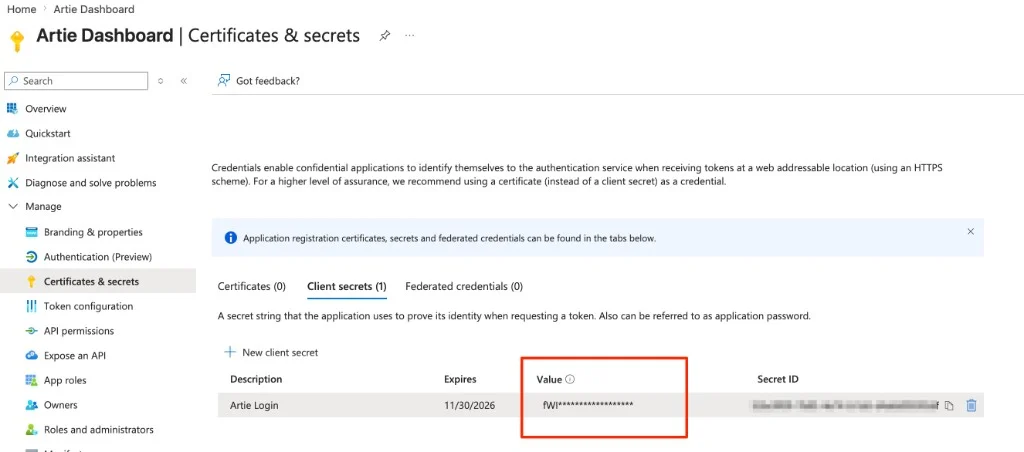
 1. In your new app registration, go to **Certificates & secrets**
2. Click **New client secret**
3. Give it a description (e.g. `Artie SSO`) and choose an expiry
4. Click **Add**
5. **Copy the secret value immediately.** It will not be shown again.
1. In your new app registration, go to **Certificates & secrets**
2. Click **New client secret**
3. Give it a description (e.g. `Artie SSO`) and choose an expiry
4. Click **Add**
5. **Copy the secret value immediately.** It will not be shown again.
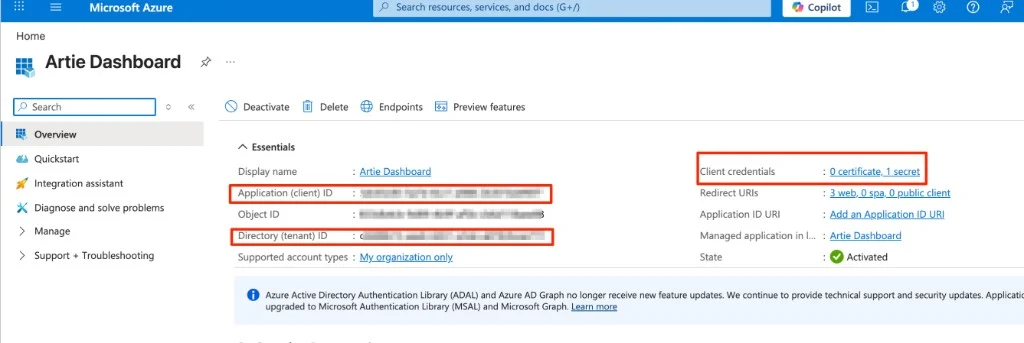
 From the app registration **Overview** page, copy:
* **Application (client) ID** (this is your Client ID)
* **Directory (tenant) ID** (you'll use this to construct the Issuer URL below)
Your **Issuer URL** (OIDC domain) follows this format:
```
https://login.microsoftonline.com/{your-tenant-id}/v2.0
```
Replace `{your-tenant-id}` with the Directory (tenant) ID you just copied.
From the app registration **Overview** page, copy:
* **Application (client) ID** (this is your Client ID)
* **Directory (tenant) ID** (you'll use this to construct the Issuer URL below)
Your **Issuer URL** (OIDC domain) follows this format:
```
https://login.microsoftonline.com/{your-tenant-id}/v2.0
```
Replace `{your-tenant-id}` with the Directory (tenant) ID you just copied.
 ## Configure SSO in Artie
1. Go to [Settings → Authentication](https://app.artie.com/settings?tab=authentication) in Artie
2. Click **Configure SSO**
3. Enter your credentials:
* **OIDC domain (Issuer URL):** `https://login.microsoftonline.com/{your-tenant-id}/v2.0`
* **Client ID:** the Application (client) ID from your app registration
* **Client secret:** the secret value you copied
4. Click **Save**
Users can now log in at [app.artie.com/login/sso](https://app.artie.com/login/sso).
📸 Add screenshot: Artie Settings → Authentication with OIDC fields filled in
## Advanced
Always use `https://api.artie.com/sso/oidc/callback` for Entra ID. This is different from the Okta redirect URI (`/sso/okta/callback`), so make sure you copy the correct one.
We recommend registering as **single-tenant** (accounts in this organizational directory only). This ensures only users within your Entra ID tenant can authenticate into your Artie account.
The Issuer URL is the base URL for the OIDC discovery document for your tenant. For Entra ID it is always `https://login.microsoftonline.com/{tenant-id}/v2.0`. You can verify it by appending `/.well-known/openid-configuration`. The URL should return a JSON document.
Entra ID client secrets expire. When your secret expires, SSO will stop working until you create a new secret and update it in Artie's authentication settings. We recommend setting a calendar reminder before the expiry date.
## Configure SSO in Artie
1. Go to [Settings → Authentication](https://app.artie.com/settings?tab=authentication) in Artie
2. Click **Configure SSO**
3. Enter your credentials:
* **OIDC domain (Issuer URL):** `https://login.microsoftonline.com/{your-tenant-id}/v2.0`
* **Client ID:** the Application (client) ID from your app registration
* **Client secret:** the secret value you copied
4. Click **Save**
Users can now log in at [app.artie.com/login/sso](https://app.artie.com/login/sso).
📸 Add screenshot: Artie Settings → Authentication with OIDC fields filled in
## Advanced
Always use `https://api.artie.com/sso/oidc/callback` for Entra ID. This is different from the Okta redirect URI (`/sso/okta/callback`), so make sure you copy the correct one.
We recommend registering as **single-tenant** (accounts in this organizational directory only). This ensures only users within your Entra ID tenant can authenticate into your Artie account.
The Issuer URL is the base URL for the OIDC discovery document for your tenant. For Entra ID it is always `https://login.microsoftonline.com/{tenant-id}/v2.0`. You can verify it by appending `/.well-known/openid-configuration`. The URL should return a JSON document.
Entra ID client secrets expire. When your secret expires, SSO will stop working until you create a new secret and update it in Artie's authentication settings. We recommend setting a calendar reminder before the expiry date.