> ## Documentation Index
> Fetch the complete documentation index at: https://artie.com/docs/llms.txt
> Use this file to discover all available pages before exploring further.
# Enabling notifications
> Artie can send alerts and notifications to different channels. This page will go over how to configure notifications across different channels.
## Overview
Artie can send alerts and notifications to different channels. Click on the cards below to learn how to configure notifications for each platform.
## Slack
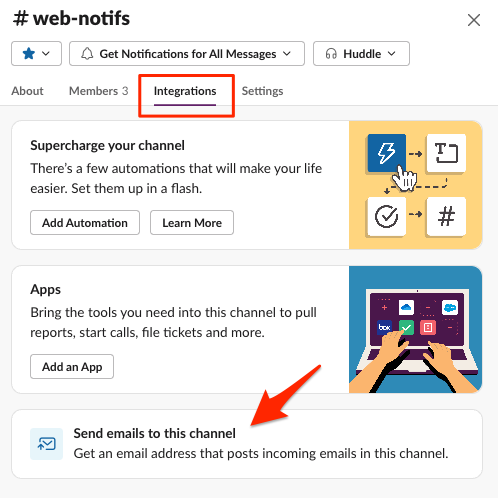
To configure Slack, you will first need to generate an email address for your Slack channel.
**Steps to set up Slack notifications:**
1. Open Slack and find or create the channel you want the notifications to be sent to
2. Click **View channel details** > **Integrations** > **Send emails to this channel**
3. Copy the email address and go to your [company settings](https://app.artie.com/settings?tab=company) in Artie
4. Enter the email address under **Additional alert emails** and click **Save**
 ## Microsoft Teams
To configure Microsoft Teams, follow these steps:
**Steps to set up Microsoft Teams notifications:**
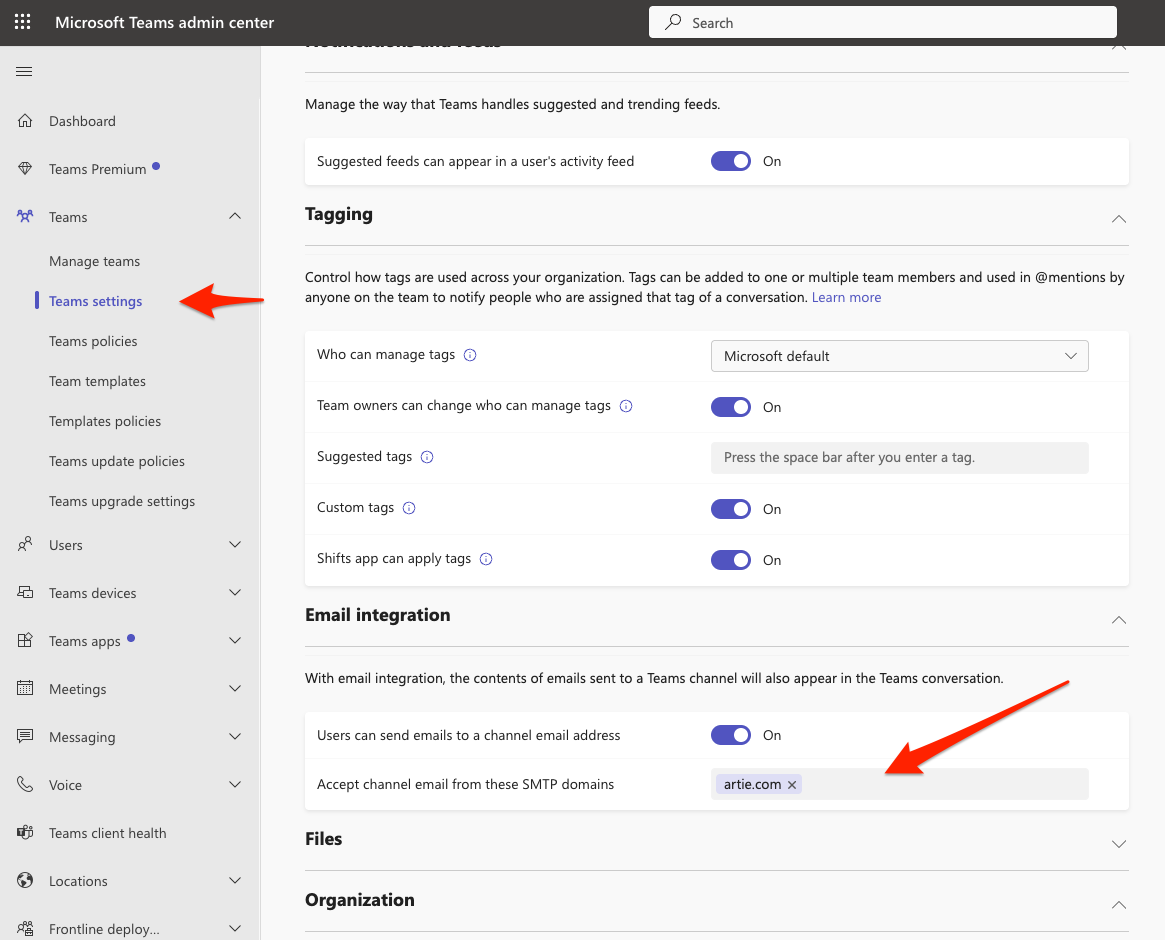
1. Allow `artie.com` as an accepted SMTP domain (this setting is available in the [Microsoft Teams admin center](https://admin.teams.microsoft.com/company-wide-settings/teams-settings))
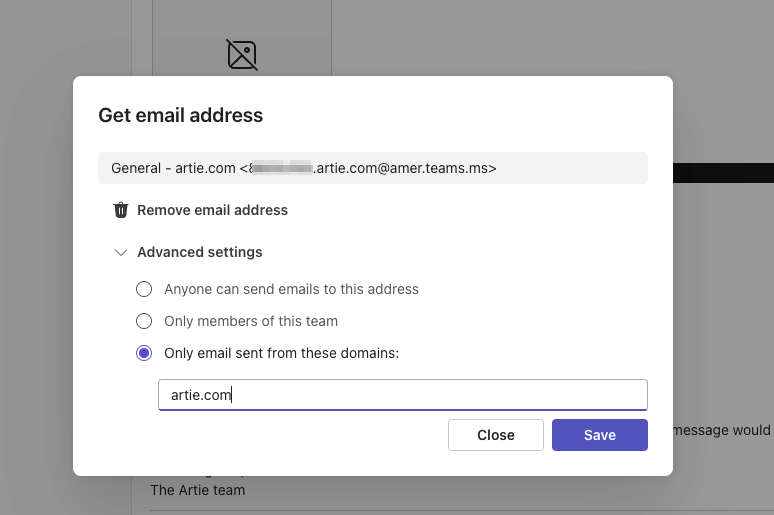
2. Click on **...** next to the channel and select **Get email address**
3. Open the advanced settings and confirm that `artie.com` is selected as the allowed domain or **anyone can send emails to this address**
4. Go to your [company settings](https://app.artie.com/settings?tab=company) in Artie
5. Enter the email address under **Additional alert emails** and click **Save**
## Microsoft Teams
To configure Microsoft Teams, follow these steps:
**Steps to set up Microsoft Teams notifications:**
1. Allow `artie.com` as an accepted SMTP domain (this setting is available in the [Microsoft Teams admin center](https://admin.teams.microsoft.com/company-wide-settings/teams-settings))
2. Click on **...** next to the channel and select **Get email address**
3. Open the advanced settings and confirm that `artie.com` is selected as the allowed domain or **anyone can send emails to this address**
4. Go to your [company settings](https://app.artie.com/settings?tab=company) in Artie
5. Enter the email address under **Additional alert emails** and click **Save**
 ## Email
For generic email notifications, you can directly add email addresses to receive alerts.
**Steps to set up email notifications:**
1. Go to your [company settings](https://app.artie.com/settings?tab=company) in Artie
2. Enter the email address under **Additional alert emails**
3. You can add multiple email addresses by separating them with commas
4. Click **Save** to apply the changes
## Email
For generic email notifications, you can directly add email addresses to receive alerts.
**Steps to set up email notifications:**
1. Go to your [company settings](https://app.artie.com/settings?tab=company) in Artie
2. Enter the email address under **Additional alert emails**
3. You can add multiple email addresses by separating them with commas
4. Click **Save** to apply the changes